Leaving Gmail is mostly an accounts problem. Your bank, your utility, your phone carrier and the shop you bought one thing from in 2017 all know you by your Gmail address, and some only know you through the Sign in with Google button. A 2026 NordPass survey of its own users found they manage about 120 personal passwords each. Few people could list theirs from memory.
You don’t need to. Google gives you three lists that, together, catch most of them. This page shows how to pull each one, how to put them in order, and the safe way to move each account so you never lose access.
Why Order Matters
When you remove Sign in with Google for a site, Google stops signing you in there. Google says “your data in the app is not deleted,” but you now need some other way in. If that site has no password for you and its email points at a Gmail address you’ve already deleted, you’re locked out.
So the rule is simple. Give each account its own password and your new email address first. Remove Google last.
Check the Linked Apps Page
This page lists every site you sign in to with Google, plus apps that can reach your Google data.
- Go to myaccount.google.com/linkedapps. From your account’s home page you can also reach it through Security, in the card about third-party connections (its title has changed over time).
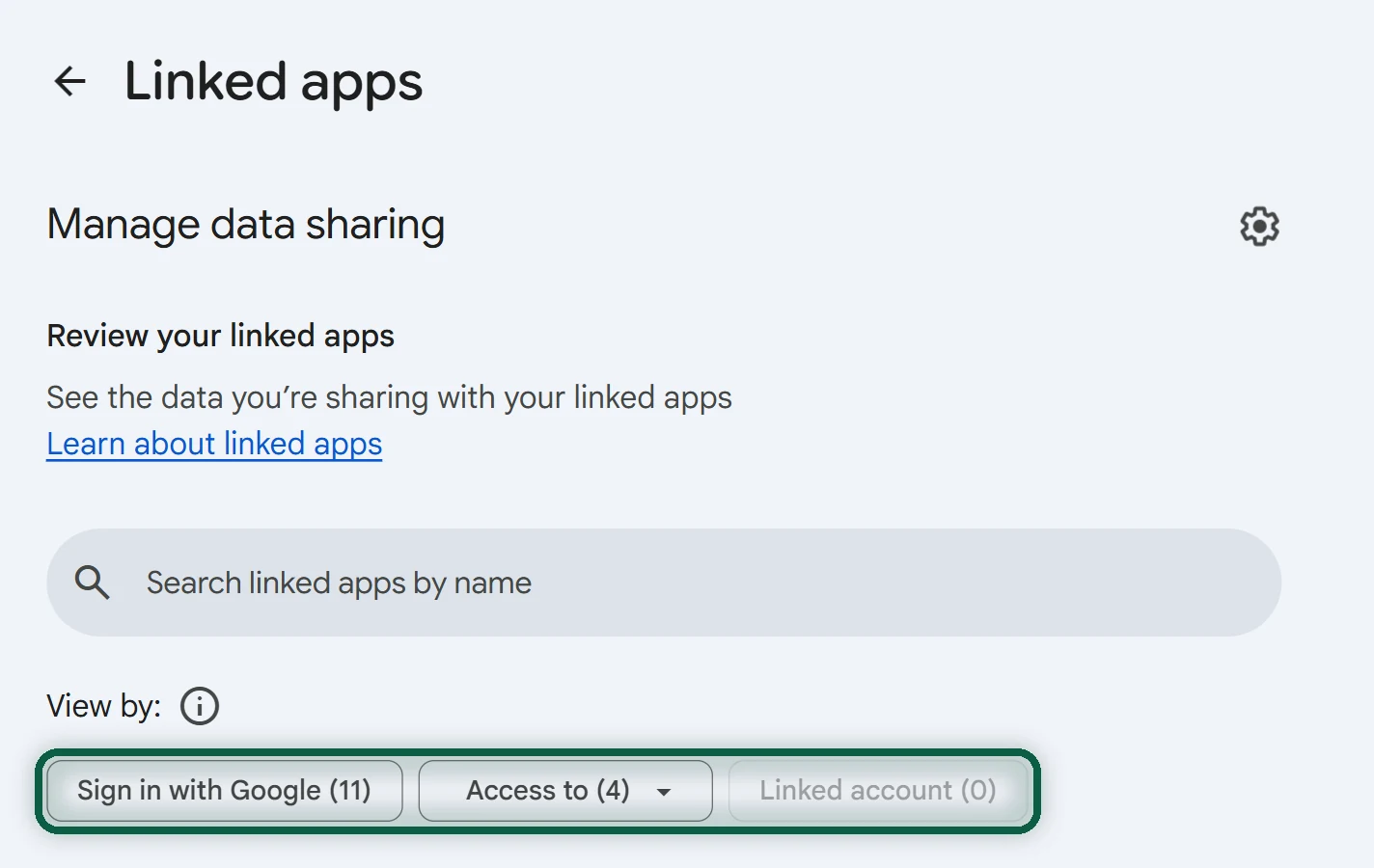
- Use the filters at the top. Sign in with Google shows sites you log in to with Google. Access to your Google Account shows apps that can read or act on your Google data. Linked account shows services where Google has some access to your account on that service. You may also see an Agent access category for Gemini or other AI agents.
- Choose Sign in with Google and read the whole list. This is your first set of accounts to move.
- Copy it. Select all the text on the page, copy it, and paste it into a note or straight into our scanner.
Each filtered view also has its own link. Use myaccount.google.com/linkedapps?filters=4 for Sign in with Google and ?filters=3 for apps with access to your data.
On a phone. On Android, open Settings, then Google, then Manage your Google Account and Security. On iPhone, open the Gmail or Google app, tap your profile picture, then Manage your Google Account and Security. Look for the third-party connections entry; the list inside works the same as on the web.
Export Your Logins From Google Password Manager
Every login you let Chrome or Android save is in Google Password Manager, with the site and the username or email you used. It’s the best single list of accounts you have. You can browse it at passwords.google.com, but to work through it, export it.
In Chrome on a computer, follow these steps.
- Click More (the three dots), then Passwords and autofill, then Google Password Manager.
- Click Settings in the left menu.
- Next to Export passwords, click Download file, and confirm with your computer or Google password if asked.
You can also paste chrome://password-manager/settings into the address bar to jump to step 3.

In Chrome on Android, tap More, then Settings, Autofill and passwords, Google Password Manager, the settings gear, Export passwords & passkeys, and Download file. Android can also send your passwords straight to another password manager. Start the import in the new app, then tap Export in Google Password Manager.
In Chrome on iPhone, tap More, then Settings, Autofill and passwords, Password Manager, Settings, and Export data. Select passwords, tap Continue, and choose where to send them. Google notes you can also export them as a CSV file.
The file has five columns, called name, url, username, password and note. The url and username columns are what you need. Entries for Android apps may look like android:// addresses rather than websites.
While you’re there, open Checkup in Google Password Manager. It lists breached and weak passwords, and those accounts are worth fixing as you move them.
Search Gmail for Welcome and Verify Emails
Some accounts never had a saved password, such as ones you created on another device or years ago. Their welcome and verification emails are usually still in Gmail. Paste these searches into the Gmail search box one at a time. in:anywhere includes Spam and Trash.
subject:(welcome OR verify OR confirm OR "activate your account" OR "confirm your email" OR "verify your email") in:anywheresubject:("reset your password" OR "password reset" OR "new sign-in" OR "security alert") in:anywheresubject:(receipt OR invoice OR "order confirmation" OR subscription OR renewal) in:anywherefrom:(noreply OR no-reply OR donotreply) older_than:1y, then the same withnewer_than:1ysubject:(recovery OR "backup email")to find accounts that use Gmail as their recovery addresscategory:promotionsorcategory:updates, to find newsletters and shop mail you can unsubscribe from instead of movingdeliveredto:followed by a full address, such asdeliveredto:yourname+shop@gmail.com, for each plus-address you remember using
To keep track, select all results and apply a label such as MIGRATE. If you’d rather fill in a form, open Show search options in the search box.
Accounts created long ago may have left no email behind. That’s why you combine all three sources.
Merge the Three Into One List
A plain spreadsheet works. Give it the columns below.
- Site, written as the main domain (bank.com, not login.bank.com), so duplicates line up.
- Login email, from the username column of the password export or from the email the site wrote to.
- How you log in, whether that’s Sign in with Google, Gmail address and password, or another email.
- Found in, to note whether it came from linked apps, the password export, Gmail search, or several.
- Priority (see the table below) and Status (to do, password set, email changed, unlinked, deleted).
The same site often turns up in two or three sources under slightly different names, so merge them into one row. A site that appears in the Sign in with Google list and has a saved password already has a way in without Google, but still needs its email changed. A site that appears only in the Sign in with Google list has no password yet, and that’s the one to fix first.
Keep the sheet somewhere private, and never paste passwords into it. You’ll come back to it for weeks.
Our scanner does this inventory for you. Drop in the password CSV, paste the linked apps list, and add a light Takeout if you like. It merges them in your browser, groups them by site, and sorts them into the order below. Nothing is uploaded.
Put the List in Order
You don’t have to move everything at once. Plan on 2 to 4 weeks for the accounts that matter, and keep Gmail forwarding on for months, ideally a year, while the stragglers turn up. Work in this order.
| Priority | Which accounts | What to do |
|---|---|---|
| 1 | Banks, government services, PayPal, shops with a saved card, and accounts that recover others, such as your Apple or Microsoft account, password manager, mobile carrier or domain registrar | Move them first, whatever the login method |
| 2 | Other Sign in with Google accounts you want to keep | Set a password and new email, then unlink |
| 3 | Accounts you still use that log in with your Gmail address | Change the email |
| 4 | Accounts you no longer use | Delete them instead of moving them |
| 5 | Newsletters and shop mailing lists | Unsubscribe, or move only the ones you read |
The Safe Order for Each Account
- Sign in to the site the way you do now, with Google if that’s how you log in. This is your last time using that route.
- Set a password on the site. Look in the account or security settings for an option to set or create a password. If there isn’t one, sign out and use the site’s “Forgot password” link with your Gmail address while you still have Gmail. Save the new password in your new password manager.
- Change the login email to your new address. Most sites send a verification link to the new address, and some also notify the old one, so keep Gmail working until you’re done.
- Update the site’s recovery email, notification email and two-factor settings if they’re separate.
- Sign out and sign back in with the new email and password to test it.
- Only now remove Google. On myaccount.google.com/linkedapps, choose Sign in with Google, select the app, then See details, Stop using Sign in with Google, and Confirm.
Remove App Access and Linked Accounts Too
The other two filters on the linked apps page are about access to your Google data. Clear them out once you’ve moved the services you care about.
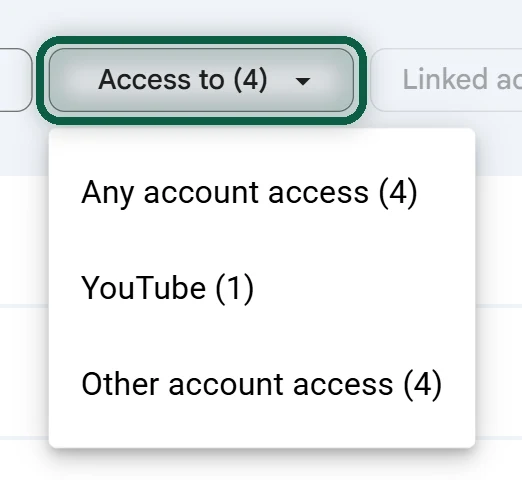
- In Access to your Google Account, select the app, then See details, Remove access, Confirm. The Access to filter splits these into Google product and Other account access.
- In Linked account, select the app, then under “Google has some access to [app]” choose See details, Delete link, Confirm.
Leave mail-import tools until last. If you used one to copy Gmail to your new provider, it may show up here with access to your Google Account. Remove it only after Gmail is retired.
What Happens After You Unlink
- When you remove Sign in with Google, Google stops signing you in to that app automatically. Your data in the app isn’t deleted.
- When you remove access, the app can’t reach your Google data any more, and some of its features may stop working.
- When you remove a linked account, features that depended on the link stop working on devices signed in to your Google Account.
- Data already shared stays with the app. Google says “the app may keep data you’ve already shared.” If you want it gone, ask the app to delete it.
Troubleshooting
You removed Google before setting a password. Go to the site’s sign-in page and use “Forgot password” with your Gmail address, while Gmail still works. If the site has no password reset, contact its support.
A site you know you use isn’t in any list. Check other browsers and password managers you’ve used, and search Gmail for the site’s name. Very old accounts may have no trace at all.
You have more than one Google account. Each has its own linked apps list and password store. Repeat this for each one.
You use passkeys saved in Google Password Manager. Create new passkeys in your new password manager for those sites before you leave Google.
When the list is done and every important account has moved, you’re ready to delete Gmail or the whole account. For the mail itself, the Gmail migration guide covers forwarding and importing.