There are four ways to a degoogled phone. Install a different Android system, buy a phone that ships with one, strip Google out of the Android you already have, or move to an iPhone. Each trades some convenience for some privacy.
Android has changed a lot since mid-2025. Samsung locked its bootloaders, Google began enforcing developer verification, and CalyxOS paused and came back. Everything below was checked in October 2026.
Which Path Is Right for You?
Go through these in order and stop at the first one that fits.
You Need Google Wallet Tap-to-Pay, or a Bank App That Rejects Custom Systems
Keep your phone and degoogle it without flashing (see below), or move to an iPhone and use Apple Pay. Google Wallet tap-to-pay is widely reported not to work on custom Android systems, and some bank and government apps refuse to run on a phone Google hasn’t certified.
You Already Use an iPhone, or You Want the Least Effort
Stay on iPhone, or move to one. iOS has no Google services built in, so you only remove Google’s apps and accounts and change Safari’s search engine. It takes about 30 minutes and every banking app keeps working. You do depend on Apple instead.
You Can Follow On-Screen Steps for About an Hour
Buy a Pixel 8 or newer, except the Pixel 11 series, and install GrapheneOS with its web installer. This is our default recommendation. It has the strongest security and privacy here and long update support, and most banking apps plus Android Auto work once you add sandboxed Google Play. Our GrapheneOS guide covers the install, sandboxed Google Play and profiles in depth.
You Don’t Want to Install Anything Yourself
Buy a phone that ships degoogled. A Fairphone 6 or a refurbished Pixel with /e/OS from Murena or Fairphone works out of the box. For GrapheneOS preinstalled, Nitrokey in Germany sells the NitroPhone. Our list of the best degoogled phones compares models, prices and update dates.
You Want to Keep a Phone That Isn’t a Pixel
Check whether /e/OS, iodéOS or CalyxOS supports your exact model. If only LineageOS does, run it with microG and accept clearly weaker security. If nothing supports your phone, or its bootloader can’t be unlocked (every Samsung on One UI 8 or later), degoogle the stock system.
Degoogled Phone Systems Compared (October 2026)
| Option | Phones it runs on | Ease | Banking apps | Android Auto and tap-to-pay | Who it’s for |
|---|---|---|---|---|---|
| GrapheneOS | Pixel 6 to Pixel 10 series, including 10a, Folds and Tablet. Buy a Pixel 8 or newer, except the Pixel 11 series. | Easy with the web installer | Most work with sandboxed Google Play. Apps that demand Play Integrity “device integrity” fail. | Android Auto officially supported. Google Wallet tap-to-pay reported not to work. | Anyone who wants the best privacy and security |
| GrapheneOS preinstalled (NitroPhone) | Pixel 10a, 10, 10 Pro, 10 Pro XL, 10 Pro Fold | Easiest | Same as GrapheneOS | Same as GrapheneOS | People who won’t install it themselves |
| /e/OS (Murena) | Sold on Fairphone 6/6+, refurbished Pixel 7 and 8, Teracube 2s, SHIFTphone 8 and more. DIY on hundreds of models. | Easiest bought, moderate DIY | Mixed. Uses microG, so apps that enforce Play Integrity fail. | Android Auto runs through microG; test it before relying on it. Tap-to-pay reported not to work. | Non-technical users who want a phone that just works |
| CalyxOS | Pixel 6 to 9 series and 10a, Fairphone 4, 5 and 6, several Motorola g models, SHIFTphone 8 | Easy (web installer for Pixel and Motorola) | Mixed (microG). Play Integrity checks fail. | Android Auto not documented. Tap-to-pay reported not to work. | Fairphone 5 and 6 owners |
| iodéOS | 34 models; the shop sells Pixels, Fairphones and Sony phones | Easiest bought, moderate DIY | Mixed (microG) | Assume Android Auto is unreliable | EU buyers who want a ready-made phone |
| LineageOS + microG | The widest range of phones | Hard | Weaker, because the bootloader usually stays unlocked | No Android Auto without Google apps | Keeping an older phone alive |
| Stock Android, degoogled | Any phone, including Samsung | Easy in settings, moderate with ADB | All work | Both work while the Google account and apps stay | People who need Wallet or can’t flash |
| iPhone | Any recent iPhone | Easiest | All work | CarPlay and Apple Pay | People whose goal is “less Google” |
| DivestOS | Discontinued in December 2024 | Nobody. Move off it. |
Here is where each project stands this month.
- GrapheneOS released 2026100600 on 6 October 2026, on Android 17. Pixel 6 and 6 Pro reach the end of minimum support this month, so don’t buy one. The Pixel 11 series isn’t supported. Motorola announced a partnership in March 2026 and GrapheneOS says Motorola support is on track for 2027. No Motorola phone is supported today, so don’t wait if you need a phone now.
- CalyxOS paused releases in August 2025 and returned on 1 July 2026 with 7.2.2.0 (Android 16). CalyxOS 8 (Android 17) began rolling out on 1 October 2026. Anyone still on 6.10.x has to reinstall. CalyxOS expects to stop security updates for its Motorola phones, the Fairphone 4 and the SHIFTphone 8 between December 2026 and March 2027, so don’t buy one of those for it. Our GrapheneOS vs CalyxOS comparison lists the end date for each phone.
- /e/OS is at 4.3.1 (30 September 2026) on Android 16. It usually lags GrapheneOS on security patches, and you trust Murena for its app store and cloud.
- DivestOS ended in December 2024, along with its Mull browser, though its website still reads as current.
- Samsung removed the OEM unlocking option in One UI 8 (July 2025), which rules out every custom system on an updated Samsung.
Sandboxed Google Play, microG, or Nothing
Many apps expect Google Play services for push notifications, maps and sign-in. Sandboxed Google Play (GrapheneOS) runs Google’s real Play services as an ordinary app with no special access, which gives the best compatibility. microG (/e/OS, CalyxOS, iodéOS) is an open-source rewrite of parts of Play services. It runs less Google code, but push still passes through Google’s servers and Play Integrity checks fail. Nothing at all is the most private and runs the fewest apps.
Check Your Bank Before You Buy
Banking, payment and government apps are the most common reason people give up on a degoogled phone. The app either runs or it doesn’t, and one that works today can break after an update.
- List every app you can’t do without, such as your bank, credit card, government ID, work sign-in, transit and car apps.
- Look each one up on the PrivSec.dev banking list for GrapheneOS (updated 1 October 2026, with user reports sent through GitHub).
- Check them on Plexus, which rates about 11,450 apps on degoogled and microG setups.
- If an app isn’t listed, keep a fallback ready, such as the bank’s website, a physical card, or your old phone for a few weeks.
- If a must-have app is reported broken, choose stock Android or an iPhone.
Known problem apps on the PrivSec list include N26 (new sign-ups), BoursoBank (new logins), Denmark’s MitID/AltID and TD Authenticate.
If an app fails on GrapheneOS, the PrivSec list suggests installing it through Aurora Store when Play blocks the install, blocking Play Integrity for that app, or turning off secure app spawning. GrapheneOS also suggests turning native code debugging back on if you had turned it off. It publishes an attestation guide you can send to your bank, since it supports hardware attestation instead of faking Google certification.
Tap-to-pay. Plan on a contactless card, a watch wallet such as Garmin Pay, or your bank’s own payment app if it has one (some EU banks do). Curve Pay (UK and EEA) is reported to work on GrapheneOS; test it before you depend on it. Our Google Wallet alternatives page compares these options and shows where to keep loyalty cards and boarding passes.
Android Developer Verification, Explained
Google now requires Android app developers to register and verify their identity. On certified phones, meaning ordinary phones sold with Google Play, apps from unregistered developers will be blocked from installing once the rule covers them, unless you use one of two workarounds.
| Date | What happens |
|---|---|
| 25 Aug 2025 | Google announces developer verification |
| Nov 2025 | Google adds free “limited distribution” accounts (no ID, up to 20 devices) and an “advanced flow” for power users |
| 24 Feb 2026 | F-Droid and others publish an open letter against it |
| Aug 2026 | The advanced flow rolls out gradually worldwide |
| 30 Sep 2026 | Checks start for installs from Google Play and other participating stores in Brazil, Indonesia, Singapore and Thailand |
| 2027 | Global rollout to all apps on certified Android phones |
On a stock phone, nothing changes outside those four countries until 2027. Inside them, only installs from the participating stores are checked so far, so F-Droid and downloaded app files still install normally. Once the check covers all apps, apps from unregistered developers need one of the two workarounds below.
- ADB. Installing from a computer with
adb installis exempt. - The advanced flow. In Developer options, turn on Allow apps from unverified developers, accept the warnings, then wait 24 hours once. You can enable it for 7 days or indefinitely, then turn Developer options off again. Critics point out that this flow lives inside Google Play services, which Google can change remotely.
F-Droid builds and signs about 85% of its catalog itself (a forum estimate), which doesn’t fit Google’s model, and it has told developers not to register. In September 2026 it described a way to add developer-signed packages and released F-Droid 2.0, a full rewrite of its app.
Custom systems such as GrapheneOS, CalyxOS, LineageOS and /e/OS aren’t Play-certified, so the rule doesn’t apply on them. The indirect risk is that developers who refuse to register lose stock-phone users, which could shrink the supply of open-source apps.
Install GrapheneOS With the Web Installer
Choose the Right Pixel
| Pixel | GrapheneOS support until at least |
|---|---|
| Pixel 10a | March 2033 |
| Pixel 10, 10 Pro, 10 Pro XL / 10 Pro Fold | August 2032 / October 2032 |
| Pixel 9a | April 2032 |
| Pixel 9 series | August 2031 |
| Pixel 8a | May 2031 |
| Pixel 8, 8 Pro | October 2030 |
| Pixel Fold, Pixel Tablet / Pixel 7a | June 2028 / May 2028 |
| Pixel 7, 7 Pro / Pixel 6a | October 2027 / July 2027 |
| Pixel 6, 6 Pro | October 2026 (ending now) |
The Pixel 11 series isn’t on the list, because GrapheneOS doesn’t support it (October 2026). Buy the unlocked version. A carrier can block OEM unlocking, and Verizon Pixels often can’t be unlocked at all. A used Pixel or an “a” model keeps the cost down.
What You Need
- The Pixel, charged and backed up. The install wipes it twice, so export your authenticator codes first.
- A computer on Windows 10 or 11, macOS Sonoma to Tahoe, Arch, Debian 12 or 13, Ubuntu, Linux Mint or ChromeOS, with at least 2 GB of free RAM and 32 GB of free storage. No virtual machines. Another phone on GrapheneOS or Play-certified Android 14 to 17 also works.
- A supported browser, meaning Chrome, Chromium, Edge, or Brave with Shields off. No Snap or Flatpak builds, no private windows.
- A good USB-C cable plugged straight into a rear port, with no hub.
Steps
- On the Pixel, open Settings, go to the About section and tap Build number repeatedly until Developer options turn on.
- In Developer options, turn on OEM unlocking. Connect to the internet first; some phones need it for this toggle.
- Turn the phone off, then hold Volume Down while you turn it on. It starts in fastboot mode.
- On the computer, open grapheneos.org/install/web and connect the phone.
- In the installer, run the bootloader unlock step and confirm on the phone. This wipes the phone.
- Download the release in the installer.
- Flash it. Don’t touch or unplug the phone until the installer reports that flashing is finished.
- Lock the bootloader in the installer. This wipes the phone again. Don’t skip it, because the locked bootloader is part of what keeps GrapheneOS secure.
- Start the phone and go through setup. When setup offers it, turn OEM unlocking back off.
If flashing fails, try another cable or rear port, and check that you aren’t using a private window or a Snap or Flatpak browser.
Add Google Only Where You Need It Once GrapheneOS Is Installed
- Start with no Google at all. Install apps from F-Droid or Obtainium and see what works.
- Add sandboxed Google Play only if an app needs it. Install it from the GrapheneOS App Store. It gets “absolutely no special access or privileges,” in GrapheneOS’s words. For push notifications, exempt Google Play services from battery optimization.
- Keep Google in a second profile. Install sandboxed Play in a separate user or work profile with your bank and other Google-dependent apps, so only they can see it.
- Android Auto. Install it from the GrapheneOS App Store (it needs sandboxed Play), then grant permissions under Settings → Apps → Sandboxed Google Play → Android Auto. Wired use needs much less access than wireless. Only apps installed from the Play Store appear in the car.
- Bought it preinstalled? Check the phone with GrapheneOS’s Auditor app, which uses hardware attestation to confirm the system is genuine.
Degoogle Your Phone Without Flashing
This path is for Samsung owners, people who need Google Wallet, and anyone who doesn’t want to wipe their phone. It cuts what Google gets, though the system and Play services still talk to Google.
You can stop at two levels. Level 1 keeps the Google account while you disable Google’s apps, change defaults and tighten settings, so Wallet and Android Auto keep working. Level 2 removes the account, so the phone stops syncing with Google and the Play Store stops working. Wallet needs a Google account and Android Auto relies on Google’s apps, so stay at level 1 if you need either.
Before you start, download what you want to keep with Google Takeout, move your photos, export your contacts (contacts stored only in the Google account vanish from the phone when you remove it), and move your authenticator codes.
Menu names below come from a Pixel. Samsung and other brands use similar names in different places; the search bar at the top of Settings finds them.
- Install your replacements first. The Play Store stops working once the account is gone. You need an app store (F-Droid, Obtainium or Aurora Store), a launcher, a keyboard, a browser, maps, mail and calendar apps, and a 2FA app. Our alternatives give one default pick for each.
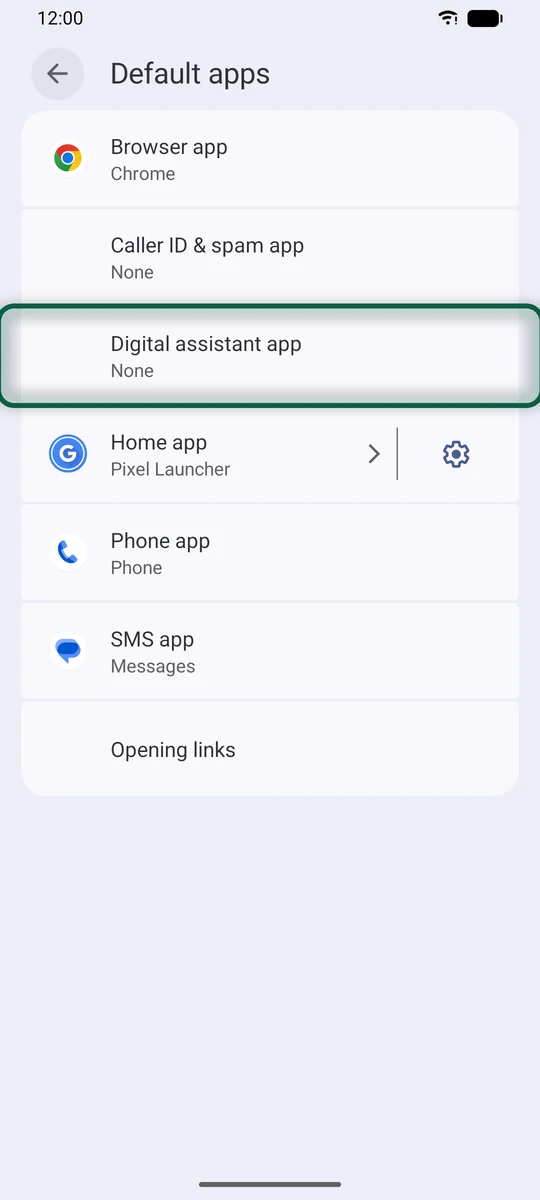
- Change your default apps. Go to Settings → Apps → Default apps. Set the Home app and Browser app, then set Digital assistant app to None. That stops Gemini or Assistant from opening when you long-press the power button. Our Gemini alternatives page covers assistants to use instead.
- Switch keyboards. Go to Settings → System → Keyboard → On-screen keyboard (called Keyboard list & default in newer versions). Turn on your new keyboard and turn off Gboard.
- Disable Google apps. Go to Settings → Apps → See all apps and pick an app. If the three-dot menu offers Uninstall updates, do that first, then tap Disable and Disable app. It’s usually safe to disable Chrome (once another browser is the default), Gmail, YouTube, YouTube Music, Google TV, Google Photos, Drive, Meet, Maps, the Google app, Gemini, Wallet if unused, and Google One.
- Tighten what stays. Delete your advertising ID, turn off backup to Google Drive, and turn off Web & App Activity and location accuracy. Our tracking guide shows where each setting lives.
- Set Private DNS. Go to Settings → Network → Private DNS, choose the hostname option and enter
dns.quad9.net. Quad9 is a Swiss non-profit resolver that blocks known malware domains. Our Google DNS alternatives page compares it with other private resolvers. - Remove the Google account (level 2). Open Settings → Passwords & accounts (on some phones Users & accounts, Passwords, passkeys & autofill or Manage accounts). Tap the Google account, tap Remove account, confirm each screen, and enter your PIN if asked.
- After a week, if everything still works, consider disabling the Google Play Store too.
Going further with a computer. UAD-ng is a free, open-source tool that removes apps for your user over ADB, without root. Use its “Recommended” list only. Removing core packages can leave the phone stuck in a boot loop.
On a Samsung
Since One UI 8 (July 2025), Samsung phones have no OEM unlocking option, so no custom system can be installed on an updated Samsung. The steps above still apply; search Settings for default apps, accounts and Private DNS, since One UI arranges them differently. If you are buying a phone to degoogle, don’t buy a Samsung.
The iPhone Path
An iPhone counts as degoogling if your goal is less Google rather than maximum privacy. Much of the degoogle community treats it as the second-best option.
You gain a phone with no Google services at the system level, long update support, every banking app plus Apple Pay and CarPlay, and on-device Live Text and Visual Look Up in place of Google Lens. Advanced Data Protection adds end-to-end encrypted iCloud, though Apple no longer offers it to new users in the UK.
The trade-off is that you swap one big tech company for another, iOS is closed source, you need an Apple Account for the App Store, and other app stores and sideloading exist only in the EU. Google stays the default search engine until you change it.
For context, a 2021 Trinity College Dublin study found that even when idle, and even after the user opted out of telemetry, Android phones contacted Google about every 4.5 minutes. iPhones contacted Apple about as often, but Android sent about 20 times more data.
These paths are from iOS 18 and later. Apple sometimes renames menus, so check against your version.
- Change Safari’s search engine. Go to Settings → Apps → Safari → Search Engine and pick another engine (on iOS 17 and earlier, Settings → Safari → Search Engine). Our search engine guide compares the options.
- Remove Google from Mail, Contacts and Calendars. Move contacts and calendars to iCloud or your new provider first. Then go to Settings → Apps → Mail → Mail Accounts, tap the Gmail account, and either switch off Mail, Contacts, Calendars and Notes, or tap Delete Account and Delete from My iPhone.
- Delete the Google apps. Long-press each icon, tap Remove App, then Delete App. Include Google Authenticator only after you’ve exported your codes.
- Change default apps. If Chrome or Gmail were your defaults, set Browser App and Email under Settings → Apps → Default Apps.
- Sign out of Google in Safari at myaccount.google.com, and set passwords on any app that still uses Sign in with Google.
Push Notifications Without Google
- GrapheneOS with sandboxed Play. Normal push works once Google Play services is exempt from battery optimization.
- microG systems. Push works through microG but still passes through Google’s servers, and some apps register late or miss notifications.
- No Google at all. Use UnifiedPush, an open standard for encrypted push. Install one “distributor” app, such as Sunup (no account), ntfy (self-hostable; hosted plans from about $5/month, Oct 2026), Conversations (an XMPP client) or NextPush (for Nextcloud). Supporting apps include Tusky, Element, Molly (a Signal fork), FluffyChat, DAVx⁵, Nextcloud Talk, Jami and Pachli.
App Stores Without Google Play
| Store | Use it for | Status (Oct 2026) |
|---|---|---|
| F-Droid | Open-source apps built from source | F-Droid 2.0 released 24 Sep 2026, auto-updates on by default |
| Obtainium | Apps that publish their own APKs on GitHub, GitLab or their website | Active; keeps the developer’s own signature |
| Aurora Store | Play Store apps without a Google account | Active; anonymous login can break |
| Accrescent | Security-focused store with no account | Early alpha, small catalog |
| GrapheneOS App Store | GrapheneOS apps, sandboxed Play, Android Auto | Built into GrapheneOS |
Start with F-Droid, use Obtainium for apps that release on GitHub, and fill the gaps with Aurora Store. Paid Play apps need your Google account in Aurora, or sandboxed Play. Our Google Play Store alternatives page goes through each store and the order to move your apps in.
Keyboards
- HeliBoard (our pick). Open source (GPL-3.0) with no internet permission at all. Swipe typing needs Google’s closed swipe library added separately, and there is no voice typing.
- FUTO Keyboard. Offline swipe and offline voice typing. Source-available rather than open source, with an optional one-time payment, and still in development.
- Gboard sends usage data to Google.
Some banking apps refuse to run with a third-party keyboard active. Switch back to the system keyboard for those.
Where to Buy a Degoogled Phone
Any country. Buy an unlocked Pixel 8 or newer, except the Pixel 11 series, and install GrapheneOS yourself. It’s the cheapest route and the only one that doesn’t require trusting a reseller. GrapheneOS lists no official resellers.
These sellers offer phones that ship degoogled.
| Seller | System | Based in | Prices (Oct 2026) |
|---|---|---|---|
| Murena | /e/OS | France, with a North American store | Fairphone 6 €639.99 / $649.99; refurbished Pixel 8 €419.99 / $379.99; refurbished Pixel 7 €339.99 / $319.99 |
| Fairphone | /e/OS option | Netherlands | Fairphone 6 with /e/OS €649, with 8 years of updates and a 5-year warranty |
| iodé | iodéOS | France | Pixel 8 from €373; Pixel 9 from €513; Fairphone 6 from €639 |
| Nitrokey NitroPhone | GrapheneOS | Germany | Pixel 10a €649; 10 €819; 10 Pro €999; 10 Pro XL €1,349; 10 Pro Fold €1,999 |
- United States. Murena has a North American store, and Fairphone ships the Fairphone 6 with /e/OS to the US except Alaska and Hawaii. Fairphone says its /e/OS phones work only on T-Mobile in the US, not on Verizon or AT&T. On the Pixel route, avoid carrier-locked phones, especially Verizon’s.
- United Kingdom. Fairphone ships to the UK, as well as the EU, Switzerland and Norway.
- EU. All four sellers are EU-based.
- Canada. Murena’s North American store sells to Canada, though customs may send you an extra bill. You can also buy an unlocked Pixel locally and install GrapheneOS.
- Australia. We couldn’t confirm a local seller of preinstalled phones. Buy an unlocked Pixel locally and install GrapheneOS.
iodé’s shop also lists very old phones such as the Galaxy A5 (2017) and Xperia XA2 and XZ1. They no longer get firmware or driver security updates, so skip them. For model-by-model picks and prices, see the best degoogled phones.
Is Degoogled Android Still Worth It?
Google keeps narrowing open-source Android. It stopped publishing Pixel device trees with Android 16 (June 2025), has embargoed security patches for three months since October 2025, and from 2026 publishes source code only twice a year. GrapheneOS copes best because it gets early patch access through a phone-maker partner.
So buy hardware with a bootloader you can relock. Today that means a Pixel, and from 2027 Motorola too if GrapheneOS’s plans hold. GrapheneOS estimates around 400,000 users (April 2026). If flashing isn’t for you, stock degoogling or an iPhone still cuts back what Google collects. Partial is fine.
Not sure which Google services your phone and accounts depend on? Run a free scan before you wipe anything.