About two in three web page views worldwide are loaded in Google Chrome (StatCounter, Sept 2026). When you’re signed in and syncing, Chrome can save your browsing history to your Google account, and since March 2025 it no longer runs uBlock Origin. Switching is one of the quickest degoogle steps, and you keep your bookmarks, passwords and most extensions.
Quick Comparison
| Browser | Best for | Engine | Platforms | Based in | Main trade-off |
|---|---|---|---|---|---|
| Brave | Chrome users who want zero friction | Chromium | Windows, macOS, Linux, Android, iOS | USA | Crypto, Rewards and AI extras to switch off |
| Firefox | A mainstream non-Chromium browser | Gecko | All major platforms | USA | Telemetry on by default |
| LibreWolf | Hardened Firefox, no setup | Gecko (Firefox fork) | Windows, macOS, Linux, OpenBSD | Community project | No mobile app; DRM off |
| Mullvad Browser | Maximum anti-fingerprinting | Gecko (Tor Browser without Tor) | Windows, macOS, Linux | Sweden | Forgets everything when closed |
| Vivaldi | Power users, no AI | Chromium | Windows, macOS, Linux | Norway | Interface not fully open source |
| ungoogled-chromium | Degoogled Chromium purists | Chromium | Windows, macOS, Linux | Community project | Manual updates, no Safe Browsing |
All six are free.
Why Manifest V3 Pushed uBlock Origin Out of Chrome
Chrome moved extensions to a new system, Manifest V3, and switched off the old one, Manifest V2, between October 2024 and March 2025. uBlock Origin, the blocker most privacy people swear by, was disabled in Chrome from 3 March 2025.
- Firefox still runs the full uBlock Origin on desktop and Android.
- LibreWolf and Mullvad Browser ship with it.
- Brave blocks ads with Shields, which are part of the browser and don’t depend on Manifest V2.
- Vivaldi and other Chromium browsers are losing Manifest V2 extensions along with Chrome.
- Helium, a degoogled Chromium, keeps Manifest V2 support and preinstalls uBlock Origin.
That’s why “Firefox plus uBlock Origin” is the degoogle community’s default answer, and Brave is the usual pick for people who want to stay on Chromium.
The Alternatives, One by One
Brave
Same engine as Chrome, so sites look and behave the same. It imports your Chrome bookmarks, history and settings in one step and installs extensions from the Chrome Web Store. Shields block ads and trackers out of the box. Brave reports 128 million monthly users (Sept 2026).
- Choose it if you want everything to keep working, with ad blocking and no setup.
- Skip it if crypto features put you off. Brave ships a crypto wallet, Rewards and the Leo AI assistant. All can be turned off, but some degooglers still object to them and to an earlier affiliate-link controversy. It’s also a US company, and it follows Chromium’s direction.
- Platforms. Windows, macOS, Linux, Android and iOS.
- Side by side. Our Brave vs Chrome comparison covers ad blocking, privacy, speed and the extras to switch off.
Firefox
Firefox runs on Gecko, the only major browser engine besides Apple’s WebKit that Google doesn’t control. You get the full uBlock Origin on desktop and Android, plus Containers to keep sites apart. Firefox has under 3% of browser traffic worldwide (StatCounter), so using it also keeps a non-Chromium web alive.
Mozilla has also tested its users’ trust. In late February 2025 it introduced Terms of Use with a license over “content you input” and removed “we never sell your data” from its FAQ. After a backlash, Mozilla revised the wording and said “sell” was dropped because some laws define selling broadly. The current terms, in effect since 16 September 2026, no longer contain that input-content license. They grant Mozilla “the rights necessary to operate Firefox.”
Its push into AI (sidebar chatbots, a Perplexity search option) drew criticism too. Firefox 148 (February 2026) added an AI controls section with a global kill switch for its AI features.
- Choose it if you want a mainstream browser that isn’t Chromium, or full uBlock Origin on Android.
- Skip it if you’ve lost trust in Mozilla. LibreWolf gives you Firefox without the telemetry.
- Setup. Telemetry is on by default, so switch it off in Firefox’s privacy settings. Then install uBlock Origin and use the AI kill switch.
- Built-in translation. Firefox translates web pages on your own device, so it also replaces Google Translate for most browsing. Our Google Translate alternatives page covers the rest.
LibreWolf
Firefox with the telemetry removed, uBlock Origin bundled, hardened privacy settings and DRM disabled.
- Choose it if you want a hardened Firefox without editing settings yourself.
- Skip it if you need Android, since there’s no mobile version, or you stream Netflix and similar services, which need DRM tweaks. Some sites break because of its anti-fingerprinting, and updates arrive slightly after Firefox’s.
- Platforms. Windows, macOS, Linux and OpenBSD.
Mullvad Browser
Made by Mullvad VPN (Sweden) with the Tor Project. It’s Tor Browser without the Tor network. Every user looks the same to websites (letterboxing, a uniform fingerprint), private mode is always on, uBlock Origin is included and there’s no telemetry. You don’t need Mullvad’s VPN to use it.
- Choose it if you want the strongest protection against fingerprinting for sensitive browsing.
- Skip it if you want a daily driver. It forgets everything when you close it, and it doesn’t hide your IP address unless you add a VPN.
- Platforms. Windows, macOS and Linux.
Vivaldi
A Chromium browser from Norway for people who like to customize. Mail, calendar, a feed reader and tab stacks are built in. Vivaldi 8.0 (21 May 2026) redesigned the interface, and the company refuses to add AI.
- Choose it if you want a European, AI-free browser with lots of features and Chrome extensions.
- Skip it if open source matters to you (the interface layer isn’t fully open), or you depend on Manifest V2 extensions, which are going away in Chromium browsers.
- Platforms. Windows, macOS and Linux.
On phones. Brave and Firefox both have Android apps, and IronFox is a hardened Firefox-based option that degooglers on Android often pick. On iPhone, Apple has long required browsers to use its WebKit engine outside the EU, so switching there mainly gets you better blocking and settings.
Degoogled Chromium and ungoogled-chromium Explained
“Degoogled Chromium” almost always means ungoogled-chromium, an open-source project that takes Chromium (the code behind Chrome) and removes its dependence on Google’s web services. You keep Chrome’s engine and extension support, minus Google.
What It Removes
- Dependencies on Google’s web services.
- Google domains in the code, replaced with dead
qjz9zkdomains so leftover calls go nowhere. - Safe Browsing, Google’s phishing and malware warning system, which is disabled.
- Pre-built binaries bundled with Chromium’s source.
It also adds optional privacy flags you can turn on.
How to Install It
The project’s GitHub page links to builds for each platform.
- macOS. With Homebrew, run
brew install --cask ungoogled-chromium. - Linux. Install from Flathub, the AUR, OBS, a PPA or COPR.
- Windows. Download from the project’s platform repositories linked on GitHub.
Contributors build these binaries, and the builds aren’t reproducible, so you’re trusting whoever built yours.
Extensions and Updates
- Updates. Most builds don’t update themselves. Installing through Homebrew or Flathub lets updates arrive with your other software. The project tracks Chromium’s stable releases closely; a release with Chromium’s latest security fixes came out on 9 October 2026.
- Extensions. Installing from the Chrome Web Store needs a workaround, which the project documents.
- No safety net. With Safe Browsing off, you lose Google’s warnings about dangerous sites.
Helium, the Easier Option
Helium, from a two-person team called imput, is built on ungoogled-chromium with friendlier defaults. It comes with uBlock Origin preinstalled, Manifest V2 support, vertical tabs, split view and local bangs. It’s still in beta (version 0.16.5 in September 2026), has no sync and no Widevine DRM, so protected streaming won’t play. Desktop only.
How to Switch From Chrome
1. Export Your Passwords
Do this first, on a computer. Ideally, import the file into a password manager such as Bitwarden rather than into your new browser, so your passwords work in any browser later.
- In Chrome, click More, then Passwords and autofill, then Google Password Manager. You can also type
chrome://password-manager/settingsin the address bar. - Click Settings, then Export passwords, then Download file.
- Enter your computer’s password (or your Google password) when asked. Chrome saves a CSV file.

That CSV lists every site you log in to, which makes it a map of the accounts to update when you leave Gmail. Our free scan reads it in your browser without uploading anything.
2. Import Into Your New Browser
Firefox
- Bookmark any Chrome tabs you want to keep into a folder, then quit Chrome completely.
- In Firefox, open the menu, then Settings, then General. Under Import Browser Data, click Import Data.
- Choose Google Chrome and your profile. Tick Bookmarks, Browsing history, Extensions and Form autofill data, plus Saved passwords on a Mac. Click Import, then Done.
- On Windows and Linux, Firefox can no longer import Chrome passwords directly. In the same import wizard, choose Passwords from CSV file and pick the file you exported.
- Open the menu and click Finalize the installation of your imported add-ons.
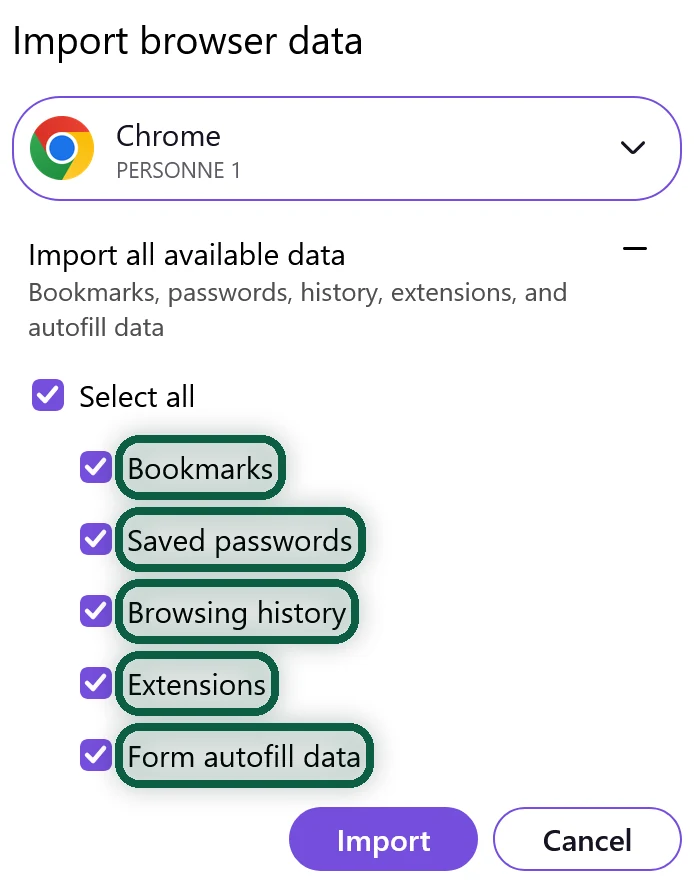
Only extensions with a Firefox version come across. If your bookmarks seem missing, open the menu, then More Tools, Customize Toolbar, Toolbars, and turn on Bookmarks Toolbar. Our Chrome to Firefox guide covers every setting, from containers to the phone app.
Brave
- Open Brave’s Main menu, then Bookmarks, then Import Bookmarks and Settings.
- Select Chrome, tick what you want, and click Import.
- For passwords, go to
brave://password-manager/settings, click Import passwords, then Select file, and choose the CSV.
For Shields settings, sync and the features worth turning off, follow our Chrome to Brave guide.
Any other browser. Use its import-from-Chrome option. If it has none, export your bookmarks as an HTML file from Chrome’s bookmark manager (⋮, then Export bookmarks) and import that.
3. Make It the Default and Close Out Chrome
- Set your new browser as the default on every device. On Android, go to Settings, Apps, Default apps, Browser app. On iPhone, go to Settings, Apps, Default Apps, Browser App.
- In Chrome, sign out and turn off sync so it stops sending data to your Google account. Then clear the synced data stored in your account.
- If you want a backup, a Google Takeout export of Chrome keeps a copy of your bookmarks and history.
- Change your default search engine too. See Google Search alternatives.
- Check your new browser’s secure DNS setting. Our Google DNS alternatives page shows how to point it at a resolver other than Google.
- If you used “Sign in with Google” on sites, give those accounts a password before you go further. See Sign in with Google.