Google Takeout (takeout.google.com) exports a copy of your data from Gmail, Drive, Photos, YouTube, Calendar, Contacts and dozens of other Google products. It’s the first step before you migrate anything or delete anything, and it doesn’t change your account.
This guide covers the full export, what format each product comes out in, the Google Photos metadata problem, and at the end, a light Takeout you can feed to our scanner.
Before You Start
- Use a computer. Google recommends “downloading and viewing Takeout exports from a desktop computer, not a mobile device.”
- Have your password and your 2-Step Verification device at hand. Takeout may ask you to sign in again.
- Check your disk space. You need room for the whole archive, or room in the cloud service you send it to. If you choose Add to Drive, the archive may count toward your Google storage.
- If you use Advanced Protection, archives are scheduled 2 days later, and scheduled exports aren’t available.
- Passwords and authenticator codes are exported elsewhere. Saved passwords come from Google Password Manager (how to export them), and Google Authenticator codes are moved from inside the app (how).
Start by Choosing What to Export
- Sign in to your Google Account and go to takeout.google.com.
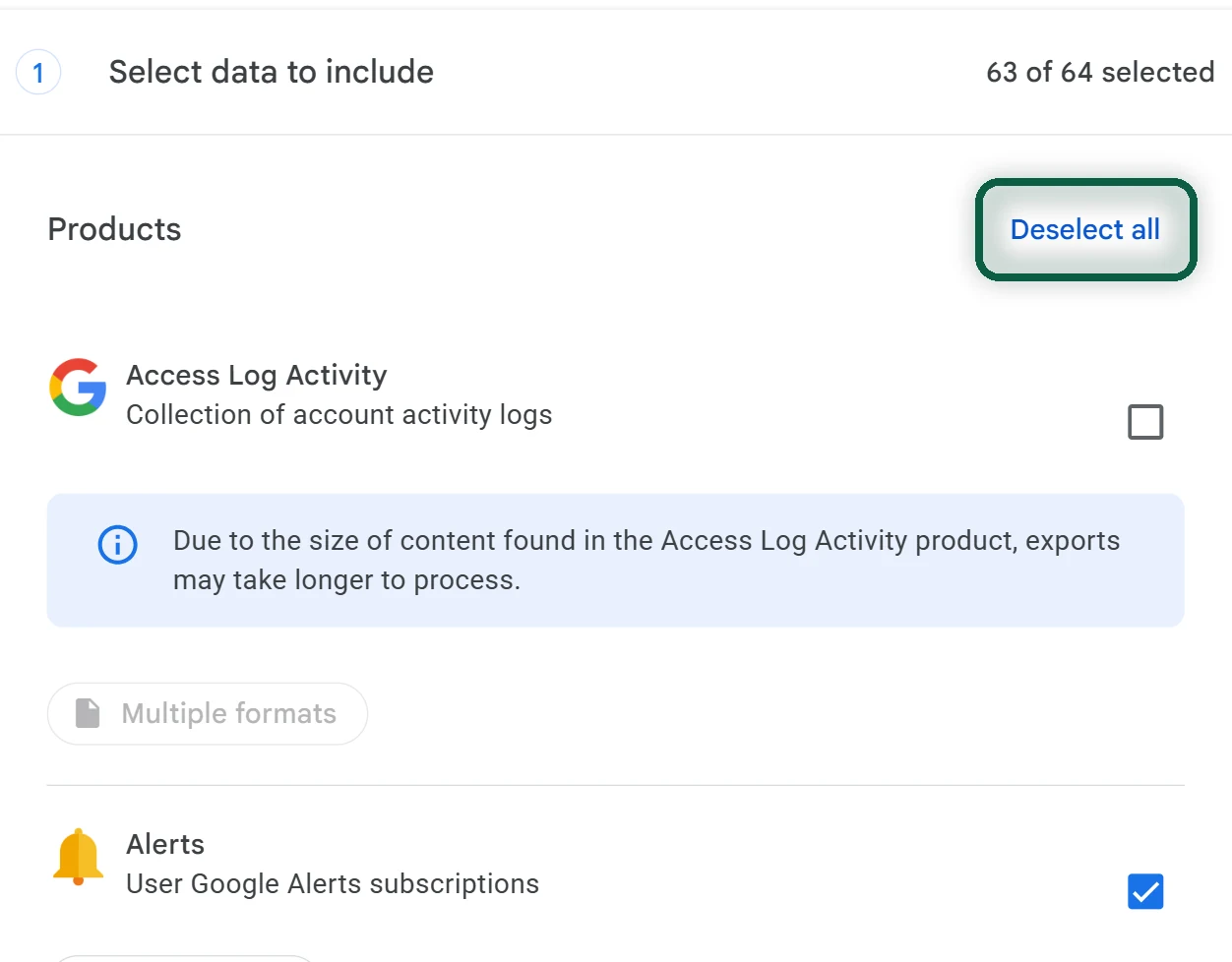
- Products you use are already ticked. Untick any product you don’t want. To start from an empty list, use the link at the top that may be labelled Deselect all, then tick only what you need.
- To export only part of a product, click its All data included button and clear the items you don’t want. On Google Photos the button may read “All photo albums included”, and on Gmail you can pick labels.
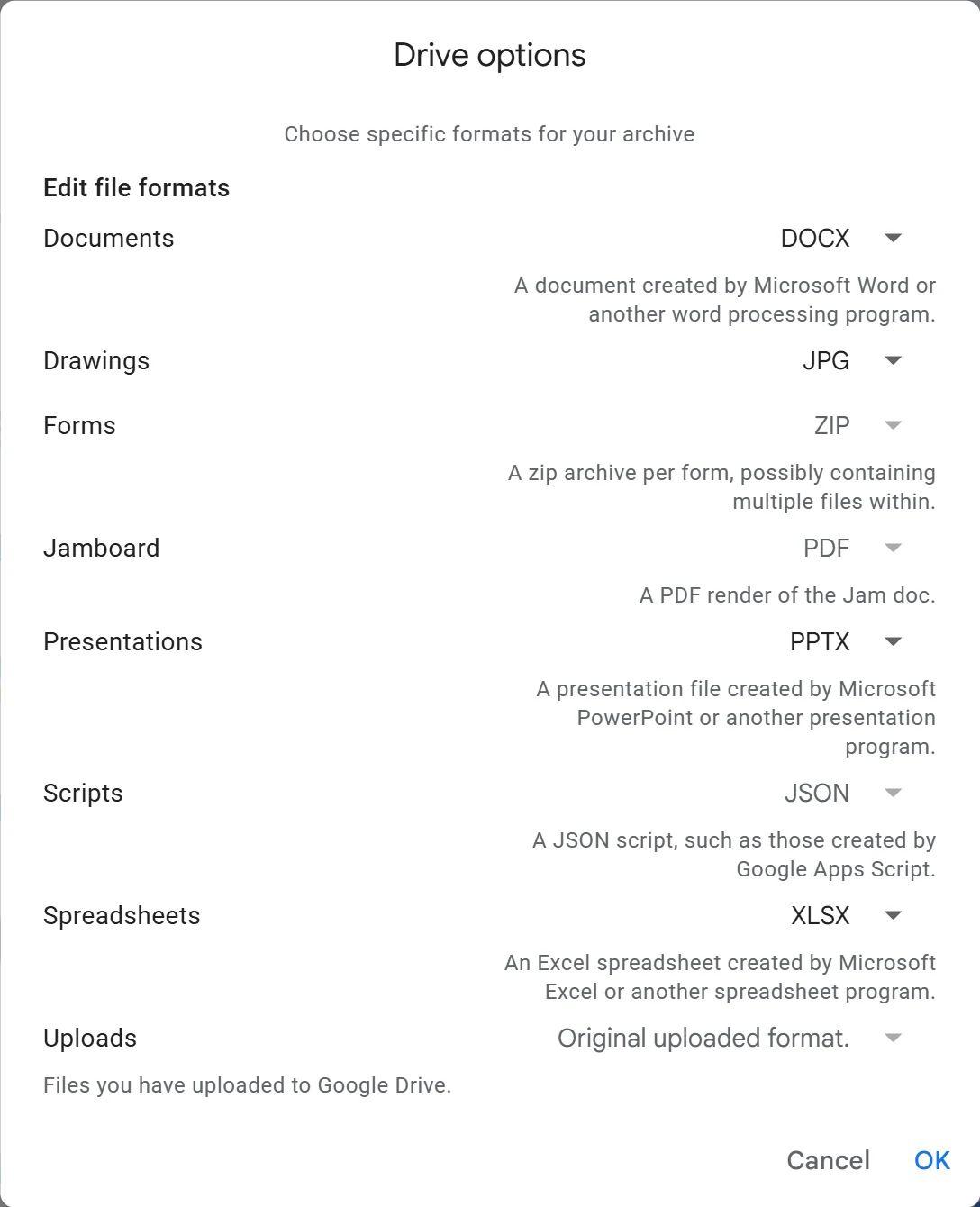
- Where a product offers a choice of format (Contacts, Drive, YouTube, My Activity), click its format button, which may be labelled Multiple formats, and choose.
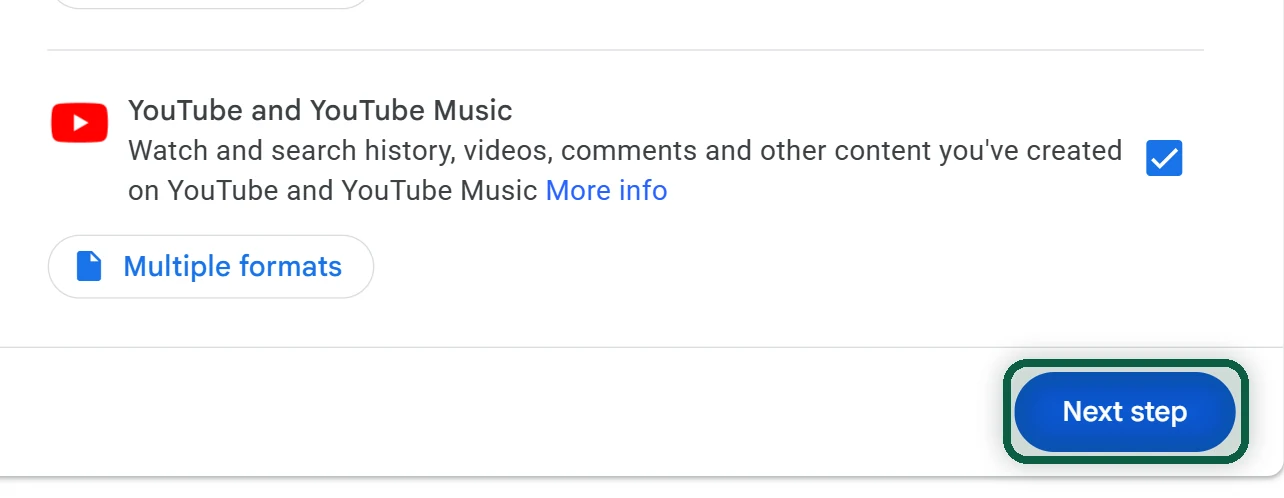
- Scroll to the bottom and click Next step.
Then Pick Delivery, Frequency, File Type and Size
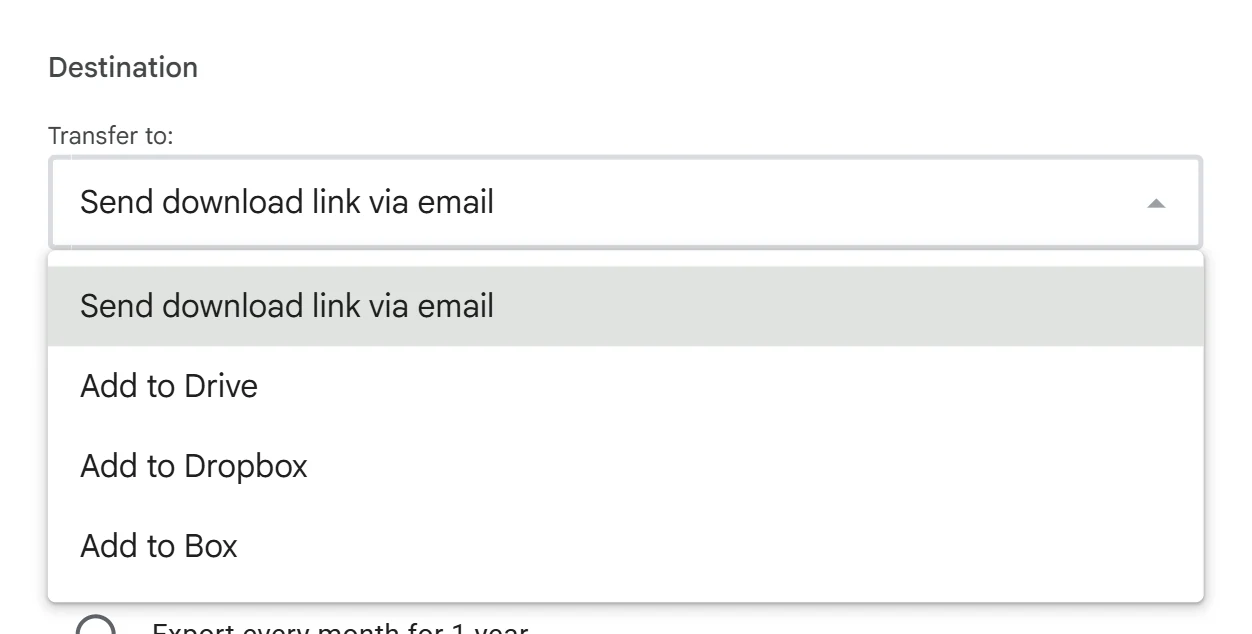
Destination. Choose one of these places for the archive.
- Send download link via email (the simplest choice)
- Add to Drive
- Add to Dropbox
- Add to Microsoft OneDrive
- Add to Box (capped at your Box account’s maximum upload size; larger files aren’t exported)
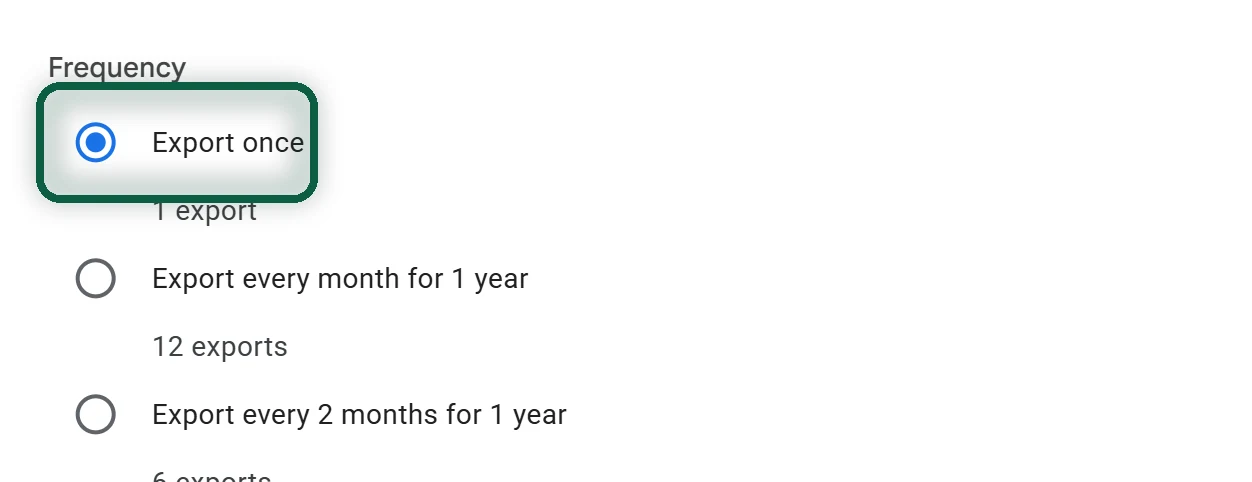
Frequency. Google’s help page calls the options One-time archive and Scheduled exports. Your screen may say “Export once” and “Export every 2 months for 1 year.” Choose the one-time option. Scheduled exports run every 2 months for a year, starting immediately. For Google Photos, scheduled exports include only new and updated items, and Photos must be the only product selected.
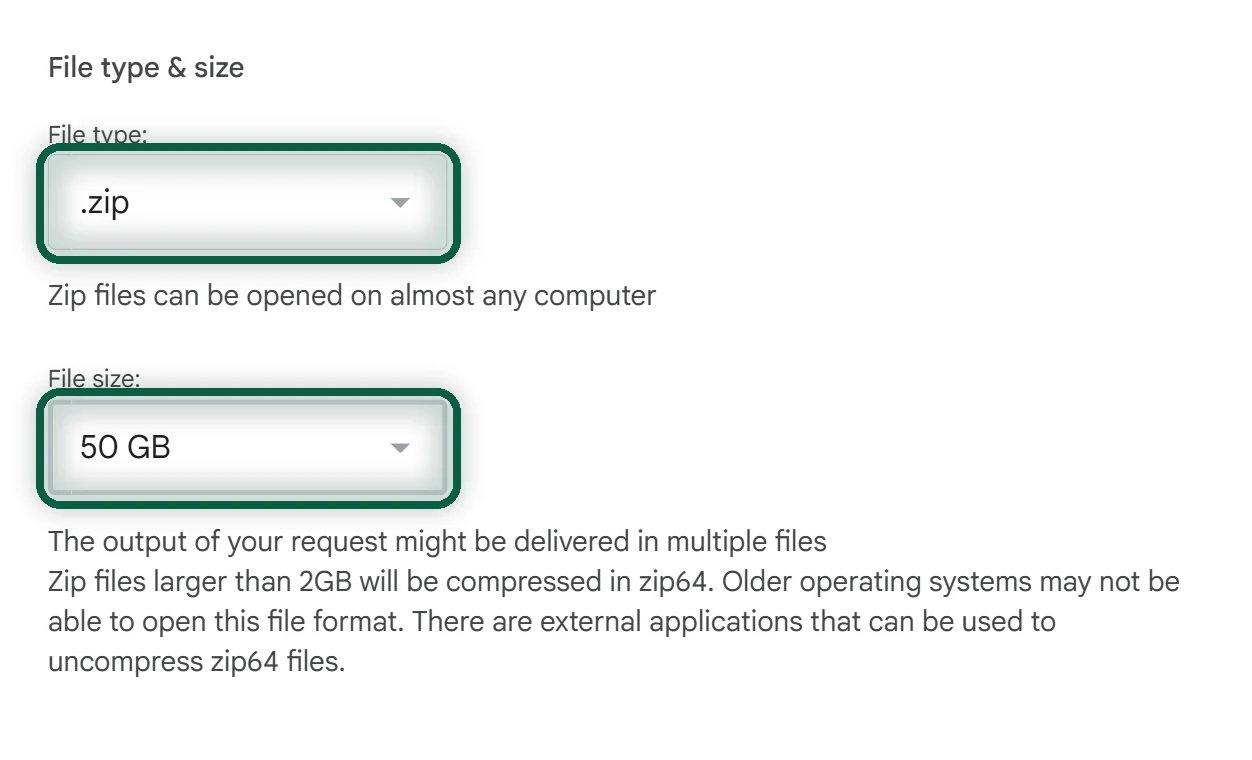
File type. Choose Zip files. Google warns that .tgz files “need extra software to open on Windows and can’t have Unicode characters in file names.”
File size. Bigger exports are split into several archives. Google says choosing 50GB “reduces the chance of splitting.” Pick 50 GB on a computer with a good connection, or a smaller size if your connection drops often.
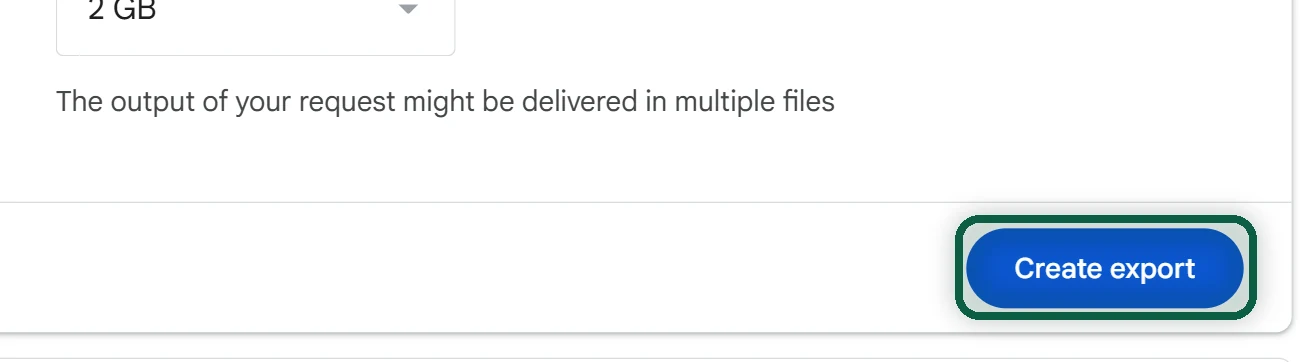
Then click Create export. If you chose Dropbox, OneDrive or Box, the button reads Link accounts and create export.
Download Every Part Before the Link Expires
Google says an export takes “a few minutes to a few days” and that “most people receive it the same day.” Big photo libraries take longest. One photo-service vendor reported a few hours for under 5,000 photos and 24 to 36 hours for 50,000 or more (2026).
When it’s ready, Google emails you. What you click depends on the destination you chose.
- For email delivery, click Download archive and follow the prompts.
- For Drive, click View in Drive. The data is in a folder organized by product.
- For Dropbox, click View in Dropbox, then Allow.
- For OneDrive, click View in OneDrive, then Yes.
- For Box, click View in Box, then Grant access to Box.
Download every part. Large exports are split into files ending -001, -002 and so on, and you need all of them.
Once downloaded, unzip everything into one folder and open archive_browser.html. It lists what’s inside and describes the formats.
The Formats Each Product Comes In
| Product | What’s in the archive | Opens with |
|---|---|---|
| Gmail (listed as Mail) | One large MBOX file by default; you can pick labels | Thunderbird, Apple Mail and most desktop mail apps |
| Contacts | vCard (.vcf) or CSV, chosen at export | vCard for iPhone, Mac and most apps; CSV for Outlook |
| Calendar | One iCalendar (.ics) file per calendar | Any calendar app that imports .ics |
| Drive | Your uploaded files as they are, plus a JSON metadata file for each. Google Docs, Sheets and Slides are converted; check Multiple formats for the choices (Office and OpenDocument formats are usually offered) | LibreOffice, Microsoft Office, OnlyOffice |
| Google Photos | Your photos and videos plus a JSON file for each, in album folders and “Photos from” year folders | See the next section |
| YouTube, Chrome, Keep, My Activity | Usually HTML or JSON files, plus CSV lists for YouTube subscriptions and playlists. Check archive_browser.html for your export | Depends on the destination app |
For Calendar and Contacts there’s a faster route. In Google Calendar on a computer, click the gear, then Settings, Import & export and Export for a .zip of .ics files. In Google Contacts, choose Selection Actions, then All, then More actions and Export, and pick Google CSV or vCard.
A few products have quirks of their own. Blogger exports each blog as a feed.atom file, while Blogger’s own Back up content button gives you the XML file that WordPress imports, as our Blogger alternatives page explains. Fitbit data now sits under Google Health, which our Fitbit alternatives page covers. Google Chat messages come out as an archive that no other chat app imports, so keep it as a record (Google Chat alternatives).
Keep the JSON Files From Google Photos
Takeout writes each photo or video, and separately, a JSON file holding the date it was taken, the place, and your description, as Google recorded them. If your new photo service imports only the image files, dates and places can go missing, and your 2018 holiday may show up sorted under the day you imported it.
A few things trip people up.
- The JSON files are often named like
IMG_1234.jpg.supplemental-metadata.json, and long names get cut short. - Some photos have no JSON file at all.
- A photo and its JSON file can land in different zip parts. Unzip every part into one folder before you process anything.
- The timestamp in the JSON is in UTC, so copying it over blindly can shift times. Good tools fill in missing dates and keep existing camera data.
Free tools that read the JSON files include GooglePhotosTakeoutHelper, immich-go (if you’re moving to Immich) and exiftool scripts. If you uploaded in Storage saver quality, expect the compressed copies back, since those are what Google stored. Our Google Photos migration guide walks through the whole move.
Moving to iCloud Photos instead? Google offers a direct transfer at takeout.google.com/takeout/transfer/custom/photos. Choose Apple - iCloud Photos, sign in to Apple, and tap Allow. Apple says it takes “between several hours and a few days.” iCloud Photos and iCloud Drive must be on, Advanced Data Protection must be off, and you need enough iCloud storage. File names, descriptions and locations come across, but Motion Photos and Memories don’t. Nothing is deleted from Google Photos.
The Light Takeout for the Sign Me Out Scanner
Our scanner works out which Google services you actually use and which outside accounts depend on your Google account. It doesn’t need your photos or mail. Five small products are enough, and the scanner reads them in your browser. Nothing is uploaded.
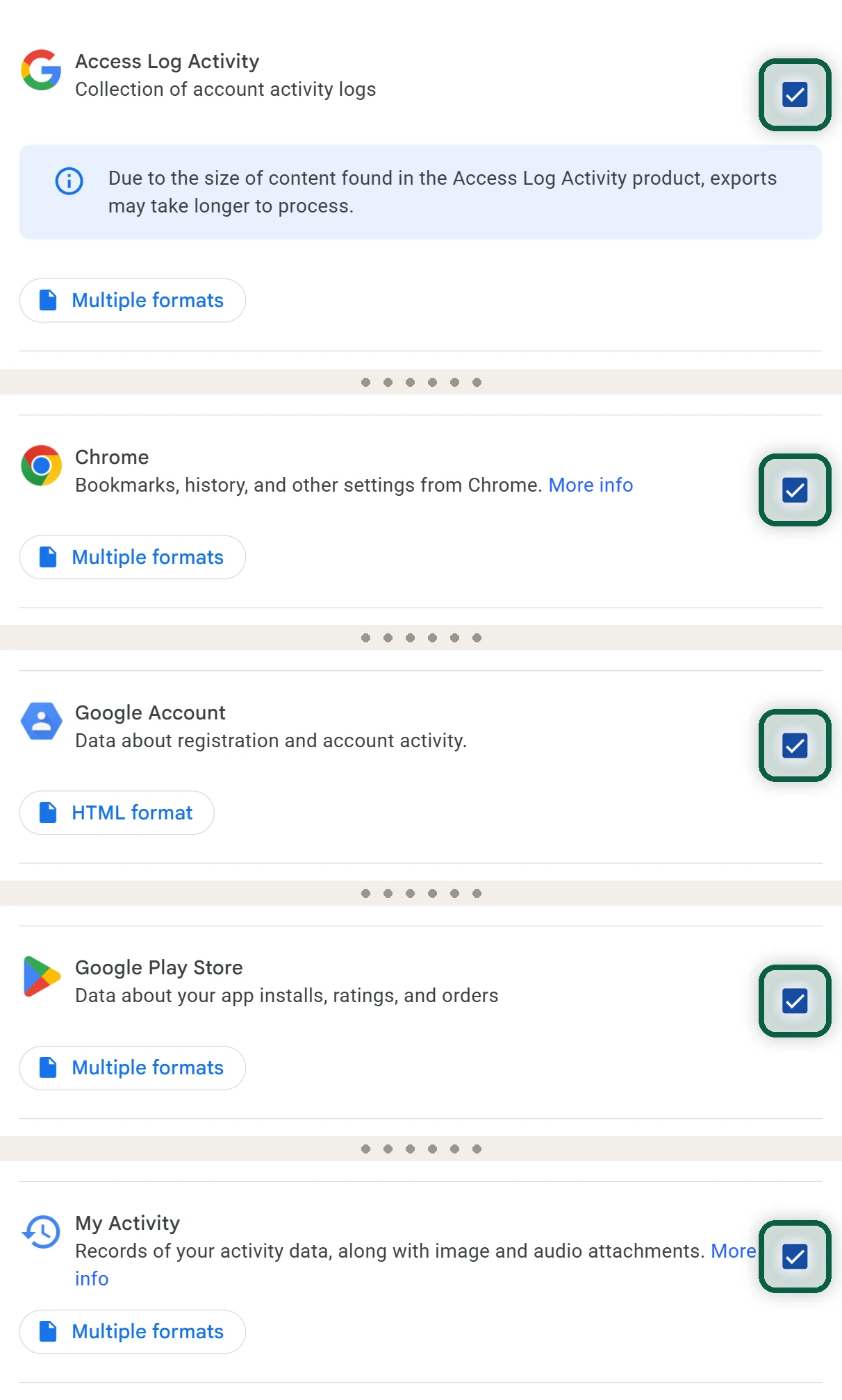
- Go to takeout.google.com and click the link that may be labelled Deselect all.
- Tick Access Log Activity.
- Tick My Activity. Click its format button (it may say Multiple formats) and set the activity records to JSON. If it shows HTML, switch it.
- Tick Chrome, Google Play Store and Google Account.
- Click Next step. Choose Send download link via email, the one-time export, and Zip files. Leave the size at its default.
- Click Create export. When the email arrives, download the .zip and drop it into the scanner. If Google split it into several parts, add them all.
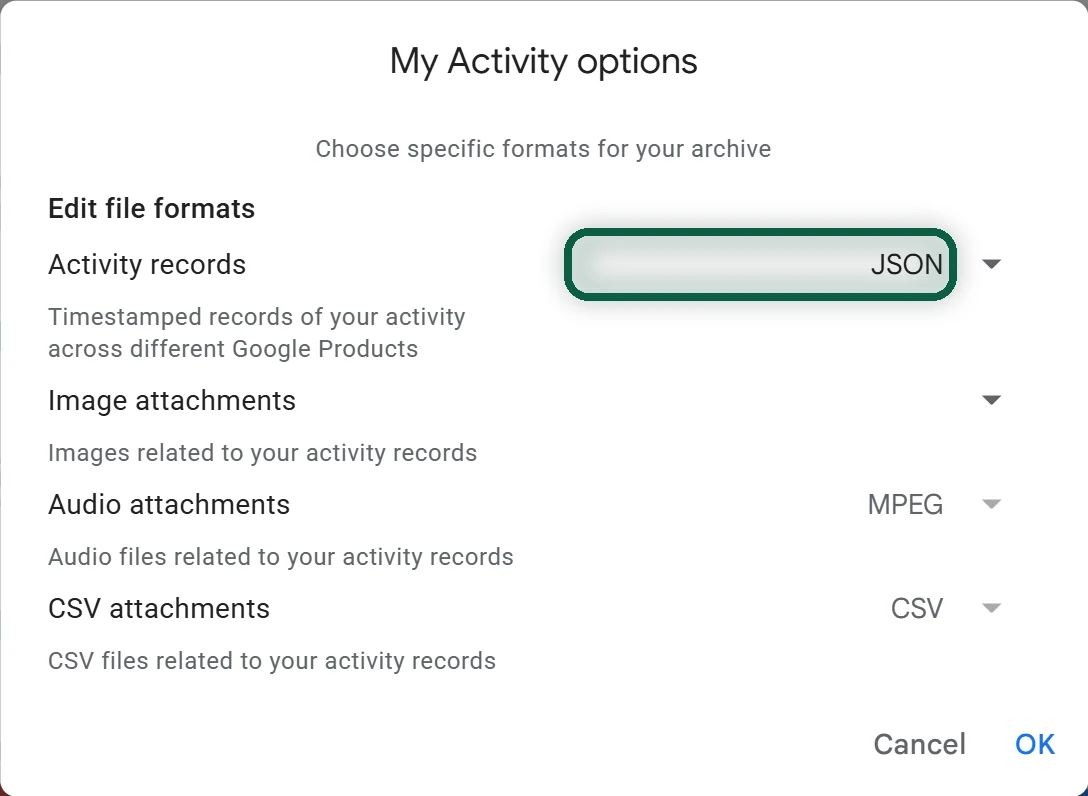
Why these five are small. None of them contains photos, videos or mail. They’re text and spreadsheet files, so the archive is usually quick to build and quick to download. My Activity grows with years of history, but it’s still text.
What each one tells the scanner is in the table below.
| Product | What it usually shows |
|---|---|
| Access Log Activity | A list of the Google services you’ve used, with devices. The best signal for what you rely on |
| My Activity (JSON) | Activity grouped by product, which confirms the services you use and hints at sites you visit |
| Chrome | Bookmarks, history and autofill entries, which point to accounts you may have forgotten |
| Google Play Store | Apps and purchases tied to the account, including Play-billed subscriptions to cancel before you leave |
| Google Account | Your profile and account details, which may include your recovery email and phone, for the checklist before you delete |
You can add Mail if you want the scanner to look for old sign-up emails, but mail exports are large and take longer. The scanner reads only the message headers.
Troubleshooting
The download keeps failing. Google suggests selecting fewer products, choosing a smaller archive size, sending it to a cloud service instead, or creating a new archive.
The link expired or you’ve used your 5 downloads. Create a new export. The old one can’t be revived.
Something recent is missing. Very recent changes, and items still being deleted, may not be included. Run another export later if you need them.
You only want one year of data. Takeout can’t filter by date. Export the product and sort it afterwards.
Your Maps Timeline isn’t there. Timeline is now stored on your phone, so it’s exported from the phone’s settings. See turn off tracking.
Windows can’t open the .tgz file. Create a new export with Zip files, or install an archive tool that handles .tgz.