Keep is quick, free and already on your phone, which is why it’s easy to forget about. Your notes live in your Google account alongside your email and files. The Google Keep alternatives below either encrypt notes so the provider can’t read them, or keep them as files on your own device.
Notes are also one of the easiest things to move out of Google. Two of these apps import a Keep export directly, and the whole switch takes about as long as tidying your labels.
Quick Comparison
| Alternative | Best for | Price (Oct 2026) | Encryption | Keep import | Open source |
|---|---|---|---|---|---|
| Notesnook | Keep-style notes and checklists | Free; Essential about $1.99/month; Pro about $6.99/month | End-to-end | Yes, built in | Yes (GPLv3) |
| Obsidian | Notes as Markdown files on your device | App free; Sync about $4/month yearly or $5 monthly | Sync is end-to-end | Yes, official Importer plugin | No (your files are open Markdown) |
| Joplin | Free, open source, sync your way | Free; Joplin Cloud from about €2.99/month | Optional end-to-end | No official importer | Yes |
| Standard Notes | Long-term encrypted notes | Free tier; Productivity about $90/year; Professional about $120/year | End-to-end | Check its import tool | Yes |
Which One Should You Pick?
Think about what you actually used Keep for.
- For quick lists, notes to self, photos of receipts and labels, use Notesnook. It’s the closest match, and the move is one import.
- For longer notes, journals or research you want to keep for decades, use Obsidian. Plain files outlive any app.
- If you want free and open source with no company holding your notes, use Joplin, synced through your own storage.
- If you want encryption with a long track record and you’re happy to pay yearly, choose Standard Notes.
If you’re unsure, start with Notesnook’s free plan. Your Takeout zip doesn’t expire once it’s on your computer, so you can import it into a second app later if the first one doesn’t stick.
The Alternatives, One by One
Notesnook
The closest to Keep in feel, and the easiest import. The importer keeps your attachments, images, checklists, links, labels, pinned status and colors, and it runs on your device, so your notes aren’t uploaded anywhere to be converted. The sync server is open source too, so you can host it yourself if you want.
- Pick it because it feels familiar on day one, and the move takes minutes.
- A possible deal-breaker is that the free plan allows only 50 MB of uploads a month and 10 MB per file, which matters if you keep lots of photos in notes. If you rely on Keep’s reminders, test Notesnook’s reminder options before you delete anything.
- Prices (Oct 2026) start at free. Essential is about $1.99/month ($19.99/year), Pro about $6.99/month ($69.99/year, or $299.99 for five years) and Believer about $8.99/month ($89.99/year).
Obsidian
Obsidian stores every note as a plain Markdown file in a folder on your device. Nothing is locked into an app, and it’s very powerful once you start linking notes together. The official Importer plugin has a Google Keep option.
- Pick it because your notes are ordinary files you can back up, search and open in any text editor, forever.
- A possible deal-breaker is that it’s overkill for shopping lists. Syncing between devices costs money (Obsidian Sync) or takes some do-it-yourself setup. The app itself isn’t open source.
- The app costs nothing (Oct 2026) and has no limits. Sync is about $4/month billed yearly or $5 monthly, and it’s end-to-end encrypted.
Joplin
Joplin is free, open source and lets you choose where your notes sync, either Joplin Cloud (hosted in Paris) or storage you already use, such as your own Nextcloud.
- Pick it because you need no subscription, and no single company holds your notes.
- Possible deal-breakers are a plain, slightly dated interface and the lack of an official Keep importer. One workaround is to run your Keep zip through Obsidian’s free Importer to get Markdown files, then bring that folder into Joplin with its Markdown import.
- It costs nothing (Oct 2026) if you use your own sync. Joplin Cloud Basic is about €2.99/month (€28.69/year), Pro about €5.99/month (€57.48/year) and Teams about €7.99 per user per month.
Standard Notes
A long-running end-to-end encrypted notes app with apps on every major platform. Proton announced in 2024 that Standard Notes was joining it, which makes it the closest thing to a Proton notes app. It’s still sold separately, with its own plans.
- Pick it for strong encryption and a long track record. The free tier includes end-to-end encryption, unlimited device sync, plain-text notes and two-factor login.
- A possible deal-breaker is that the useful extras (rich “Super” notes, folders) need the Productivity plan, and there’s no free trial of the paid plans. It has its own import tool, so check its help pages for current Google Keep support before you rely on it.
- Paid plans (Oct 2026) cost about $90/year for Productivity and about $120/year for Professional, which includes 100 GB of file storage.
What About Google Tasks?
Google Tasks is a separate app, and the Keep importers don’t touch it. Most people’s task lists are short, so copying them by hand is often quickest. Takeout also has a Tasks entry if you want an archive copy.
- For shopping lists, packing lists and chores, use checklists in Notesnook. They work like Keep’s.
- For tasks with due dates next to your calendar, use a calendar provider that supports CalDAV, such as Fastmail, Posteo, mailbox.org or Nextcloud. On Android, DAVx⁵ can sync tasks as well as events to a compatible task app. Our calendar guide walks through the setup.
How to Switch From Google Keep
First, Export Keep With Google Takeout
- On a computer, open takeout.google.com and click Deselect all.
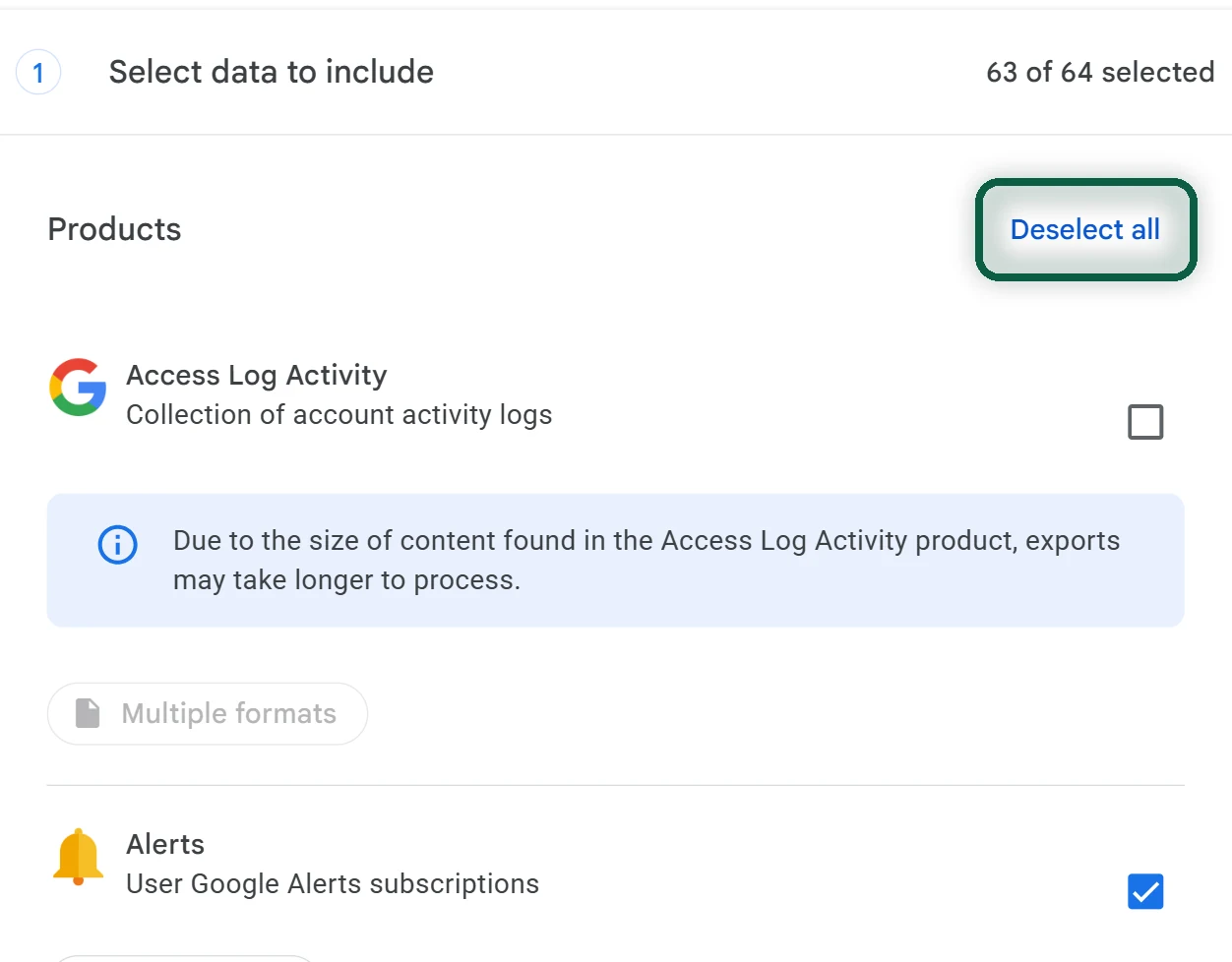
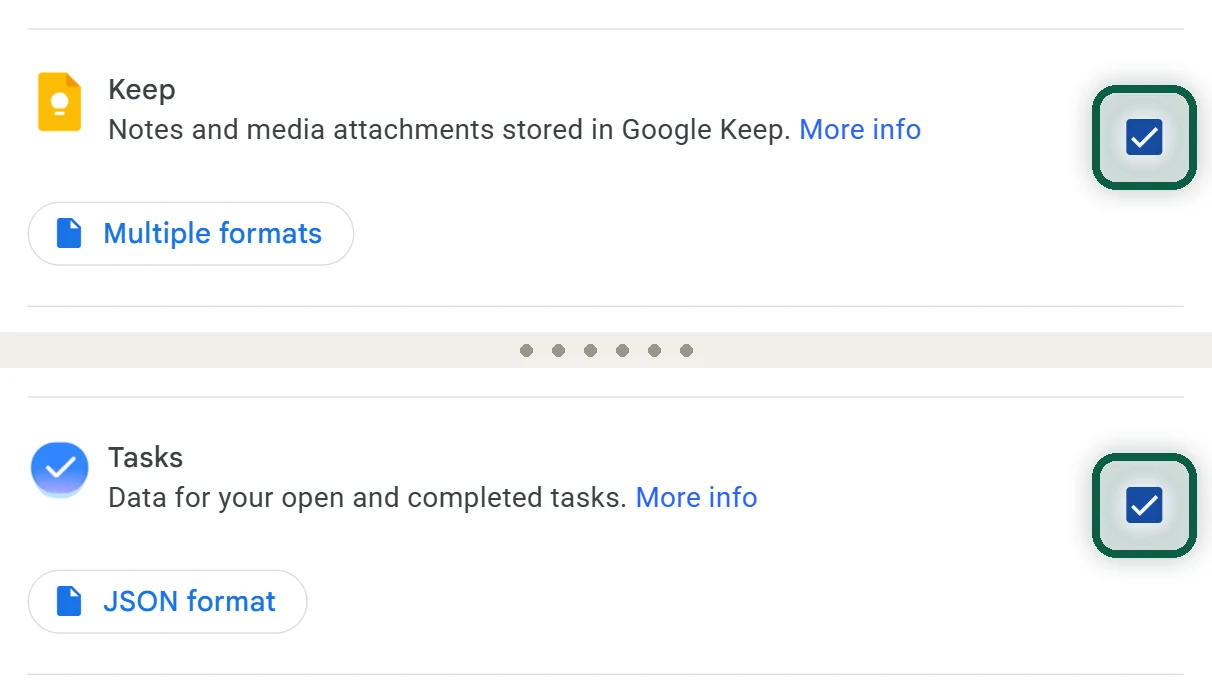
- Tick Keep (and Tasks, if you use it). Click Next step, then Create export.
- When Google’s email arrives, usually the same day, click Download archive. Leave the file zipped. Both importers below read the zip directly.
Download links expire after about 7 days. Our Google Takeout guide explains the export options in more detail.
Then Import Into Notesnook
- Open Notesnook on the web or the desktop app. The importer runs there, not on your phone.
- Go to Settings → Import & export → Notesnook Importer → Google Keep and drop in the zip file.
- Open a few checklists, image notes and labeled notes to check they came across.
Or Import Into Obsidian Instead
- In Obsidian, install the official Importer plugin from the community plugins list and turn it on.
- Open the Importer, choose Google Keep (.zip) as the format, select your zip and run the import.
Finally, Tidy up and Leave Keep
- Re-create any reminders you still need. They don’t import.
- Re-share lists you shared with family or friends, using the new app’s sharing or a different setup. Check how sharing works before you move a family shopping list.
- Fix checklists that used indentation, which Keep doesn’t export.
- After a week of using the new app, delete your notes in Keep. On Android, you can then disable the Keep app.
If the Import Goes Wrong
- The importer rejects the file. Use the original zip from Takeout rather than an unzipped folder, and check that you ticked Keep, not only Tasks.
- Your newest notes are missing. Takeout can leave out very recent changes. Wait a day and export again, or copy those few notes by hand.
- Images didn’t come across in Notesnook. The free plan’s 50 MB monthly upload limit can block large batches of attachments. A paid plan, or waiting for next month’s allowance, fixes it.
- Checklists look flat. Keep doesn’t export indentation, so nested items arrive as one level. Re-indent the lists you care about.