This guide covers the Tuta side of leaving Gmail, with Tuta’s plans, screens and limits. Changing your address on every account, and deciding how long to keep Gmail alive, works the same for every provider and lives in our general Gmail migration guide.
Choose Your Plan by What You Want to Import
Prices below are Tuta’s euro prices. The deciding question is whether you want your old Gmail inside Tuta.
| Free | Revolutionary | Legend | |
|---|---|---|---|
| Price (Oct 2026) | €0 | About €3/month billed yearly (€36/year) | About €8/month billed yearly (€96/year) |
| Storage | 1 GB | 20 GB | 500 GB |
| Extra addresses and custom domains | None | 15 addresses, 3 domains | 30 addresses, 10 domains |
| Calendars and labels | 1 calendar, 3 labels | Unlimited | Unlimited |
| Email import | No | No | Yes, in the desktop app |
Tuta’s own guide says email import is limited to Legend and the Unlimited business plan for now. So there are two sensible paths.
- Bring everything. Pick Legend, import your Takeout MBOX file and forward new mail.
- Start fresh. Pick Free or Revolutionary, forward new mail, and keep your old mail in an offline MBOX archive that opens in Thunderbird. Plenty of people never search old mail again.
Tuta is also testing One-Click Migration, which connects to Gmail over IMAP, keeps your folders and keeps syncing new mail into Tuta. It has been in closed beta since July 2026, and Tuta says it will reach all paid plans without giving a date. Don’t wait for it.
Free accounts are deleted after 6 months without a login. If Tuta becomes your main address, that won’t happen, but keep it in mind for a test account.
Set up Tuta and Save Your Recovery Code
- Sign up at tuta.com and pick your address.
- Write down the recovery code Tuta shows you and store it away from your computer.
- Turn on two-factor authentication, and save the password in your password manager.
- Install the desktop app (Windows, macOS or Linux) if you’ll import mail, and the phone app.
Forward Gmail to Tuta First
Forwarding goes first so new mail reaches Tuta while you export and import the old mail. Tuta can’t pull mail from Gmail, so Gmail has to push it.
- Open Gmail on a computer. Click the gear, then See all settings, then the Forwarding and POP/IMAP tab.
- Click Add a forwarding address, enter your Tuta address, then click Next, Proceed and OK.
- Open Tuta, find Google’s verification email and click the link.
- Back in Gmail, refresh, select Forward a copy of incoming mail to with your Tuta address, choose Keep Gmail’s copy in the Inbox, and click Save Changes.
Forwarded mail keeps your Gmail address as the recipient. Use that to sort it. In Tuta, open Settings, then Email, then Show inbox rules, and click +. Set the field to the recipient, the value to your Gmail address and the target folder to a new folder such as Via Gmail. Each message that lands there is a sender to update.
Replies go out from your Tuta address, which also tells people where you are now. The vacation responder and the full forwarding plan are in the general guide.
Download Your Gmail as an MBOX File
Skip this section if you chose the start-fresh path, but do keep one Takeout archive of your mail anyway.
- Go to takeout.google.com and click Deselect all.
- Tick Mail. To export only some labels, click All Mail data included and pick them.
- Click Next step. Choose Send download link via email, export once, .zip and 50GB, then click Create export.
- When Google’s email arrives, download every part within 7 days (each part can be downloaded 5 times) and unzip them.
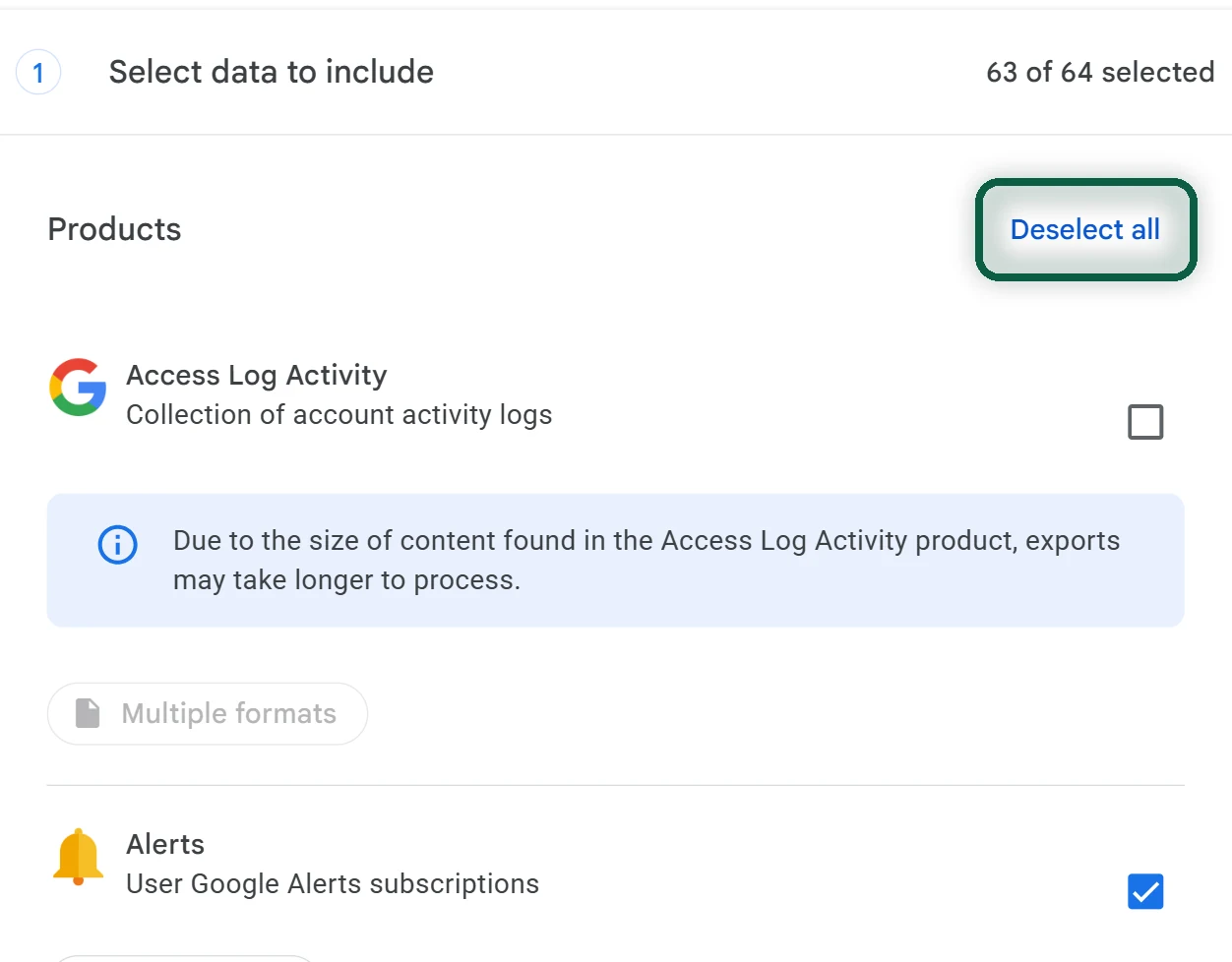
Your mail comes out as one large .mbox file. A big mailbox can take Google hours or days to prepare. Our Google Takeout guide covers the export screens in detail.
Import the MBOX in the Tuta Desktop App
The import only runs in the desktop app. It encrypts your mail on your computer before uploading it, so Tuta’s servers never see it unencrypted.
- Open the Tuta desktop app and sign in.
- Open Settings, then Email Import.
- Choose a target folder, such as a new folder called Imported.
- Click Import and select your .mbox file. Tuta also accepts .eml files for single messages.
The import history on the same screen lists each run with its date, the number of emails imported and any failures. Keep the app open and your computer awake until it finishes.
Everything in the file lands in the folder you picked. Your Gmail labels aren’t rebuilt, and sent and received mail sit together. If a few labels matter, export each one from Takeout on its own and import it into its own Tuta folder.
You can sort imported mail with your inbox rules later. Open the folder, select everything, move it to Inbox, then go to Settings, Email, inbox rules and click Reapply inbox rules. For a large import, test this on a small folder first.
Bring Over Contacts and Calendars
Contacts
- At contacts.google.com, choose Selection Actions, then All, then More actions, Export, vCard, and Export.
- In Tuta, email the .vcf file to yourself as an attachment.
- Open the attachment in the email you received, choose Import, check the preview and confirm.
On your phone, Tuta can also sync with the phone’s own address book. Turn on Contact Sync under Settings, then Contacts, in the Tuta app. If your phone’s contacts still sync with Google, Google keeps its copy until you remove it there.
Calendars
- In Google Calendar on a computer, open Settings, then Import & export, then Export. You get a .zip with one .ics file per calendar you own. Unzip it.
- In Tuta Calendar, click the three-dot button next to the calendar you want to fill, then Import.
- Select the .ics files, click open, then click Import again.
The free plan has 1 calendar, so every Google calendar lands in it. Paid plans can keep them separate. An import is a one-time copy, so later changes in Google won’t follow. For a calendar someone else runs in Google, such as a school or club calendar, ask for its public .ics link and subscribe. Click + next to Your Calendars, choose From URL, paste the link and click Subscribe.
Rebuild Folders, Labels and Rules
Gmail used labels for everything. Tuta has both folders and labels.
- Folders are unlimited on every plan, with subfolders. Click + Add folder under your folders, name it, set Parent folder to None and click Ok. For a subfolder, use the three-dot menu on the parent.
- Labels work like Gmail’s, several per message. Free has 3, and paid plans have no limit.
- Inbox rules replace Gmail filters. Each rule matches one field (such as sender or recipient) against a value and moves mail to a folder. Rules accept regular expressions.
Your Gmail filters don’t come across. Export them as a reference first. In Gmail, open Settings, See all settings, Filters and Blocked Addresses, tick the filters and click Export to get an .xml file you can read.
Tuta empties Trash and Spam automatically after 30 days, so check Spam weekly while senders get used to your new address.
Add Your Own Domain (Optional)
A custom domain means you never repeat this move. Revolutionary includes 3 domains and Legend 10.
- In Tuta, open Settings, then Global Settings, then Custom email domains, and click +.
- Enter your domain and click Next. The wizard walks you through the rest, and you can create addresses before the DNS is ready.
- At your registrar, add the records Tuta lists. That means a TXT record for ownership, an MX record, an SPF record, DKIM and MTA-STS CNAME records, and a DMARC record, which Tuta recommends.
DNS changes can take up to a few hours to show up. Keep the domain on auto-renew.
What Tuta Can’t Do
Finish the Move
Keep Gmail forwarding on while you update your accounts, banks and account-recovery logins first. The general guide covers the order, the vacation responder, and when it’s safe to delete Gmail. Not sure which accounts use your Gmail address? Our scan builds the list in your browser from files you download from Google.
Troubleshooting
Google’s Forwarding Verification Email Doesn’t Arrive
Check Tuta’s Spam folder and the address you typed. If it’s wrong, remove it on Gmail’s Forwarding and POP/IMAP tab and add it again.
Email Import Is Missing From Settings
You’re either in the web or phone app, or not on Legend. Open the desktop app, and check your plan under Settings.
The Import Shows Failures
Open the import history to see how many messages failed, then import the same file again into a separate folder and compare. Keep the original MBOX archive until you’re sure everything you need is in Tuta.
Forwarded Mail Is Missing
Gmail forwards all new mail except what it marks as spam. Check Gmail’s Spam folder now and then until your important senders have your new address.