Proton, the usual pick for degoogled documents, has no presentation app as of October 2026. That’s why our Google Docs alternatives page pairs Proton Docs and Sheets with LibreOffice Impress.
Every tool on this page opens a deck exported from Google Slides, but the look can change on the way. Fonts get swapped, text spills out of boxes, and videos go missing. The section on fonts and layout below shows you how to avoid that.
Quick Comparison
| Alternative | Best for | Price (Oct 2026) | Encryption and privacy | Based in | Open source |
|---|---|---|---|---|---|
| LibreOffice Impress | Offline decks and presenting | Free | Local files only | Germany | Yes |
| CryptPad Presentation | Encrypted decks built together in a browser | Free on public instances; cryptpad.fr plans €5–€100/month | End-to-end encrypted | France | Yes (AGPL) |
| ONLYOFFICE | PowerPoint files that must look right | Desktop editors free; DocSpace free tier, Business $20/admin/month | Depends on where you store files | Latvia | Yes (core) |
| Keynote | Mac, iPad and iPhone users | Free; Apple Creator Studio extras $12.99/month | Shared decks aren’t end-to-end encrypted | US | No |
| Zoho Show | Free cloud slides that feel like Google’s | Free for individuals | Not end-to-end encrypted | India | No |
| Microsoft PowerPoint | Office workplaces | Free on the web; Microsoft 365 Personal $99.99/year | Not end-to-end encrypted | US | No |
Which One Fits How You Present
- If you build and present decks on your own, use LibreOffice Impress, or Keynote if you use a Mac.
- If a group builds one deck together, use CryptPad Presentation. Guests join from a link without an account, and the slides stay encrypted.
- If you send decks to people who use PowerPoint, use ONLYOFFICE’s free desktop editors. They keep the file closest to the original.
- If your team runs its own server, Collabora Online, also sold as Nextcloud Office, handles presentations too.
- If you mainly want off Google and privacy comes second, Zoho Show and PowerPoint for the web are free and familiar.
The Alternatives, One by One
LibreOffice Impress
Impress uses OpenDocument (.odp) natively and handles .pptx files well. The Presenter Console comes built in and supports multiple monitors.
- Pick it because it’s free, works offline and keeps your presentations on your own computer.
- The deal-breakers are that there’s no live co-editing, and complex PowerPoint animations can look different. Sync the files with encrypted storage, such as Proton Drive, Filen or Nextcloud, to work across devices.
- It’s free on Windows, macOS and Linux.
CryptPad Presentation
CryptPad is an end-to-end encrypted, open-source suite made in France by XWiki SAS. Its Presentation app is built on ONLYOFFICE. It imports .pptx and .odp files and exports .pptx, .odp and PDF. CryptPad also has a simpler Slides app that builds slides from Markdown text.
- Pick it because a group can edit one encrypted deck in real time, people without an account can join from a link, and you can self-host it.
- The deal-breakers are that plugins and macros don’t work, large files get slow, and it feels cramped on a phone. CryptPad’s own guide suggests exporting to a desktop app such as Impress for print layout.
- It’s free on cryptpad.fr and other public instances. Paid cryptpad.fr plans run from €5 to €100/month (Oct 2026).
ONLYOFFICE
ONLYOFFICE, from Ascensio System SIA, has the best Microsoft Office format fidelity among open-source editors. The desktop editors are free for personal and professional use on Windows, macOS and Linux. The free ONLYOFFICE Documents app creates and edits presentations on iPhone and Android.
- Pick it because decks you share with PowerPoint users keep their layout best.
- The deal-breakers are that live co-editing needs a cloud such as Nextcloud or ONLYOFFICE DocSpace, which is aimed at businesses. The editors include AI tools, but they’re optional and use a provider you choose.
- DocSpace’s free Startup plan allows 3 admins, 12 rooms and 2 GB, and Business costs $20 per admin per month (Oct 2026).
Keynote
Apple’s Keynote is free on Mac, iPad and iPhone. Keynote for iCloud also runs in a browser on a Mac or Windows computer. It opens and edits PowerPoint presentations and exports .pptx files, and it warns you when a deck uses a font you don’t have.
- Pick it because it’s polished, free, and works well if all your devices are Apple.
- The deal-breakers are that the full app is Apple-only and shared presentations aren’t end-to-end encrypted, even with Advanced Data Protection turned on.
- It’s free. Apple Creator Studio ($12.99/month or $129/year, launched January 2026) adds premium templates and AI tools, including drafting decks from an outline. You don’t need it.
Zoho Show
Zoho Show, from Zoho Corp. in India, is free for individuals, with offline mode, uploads up to 500 MB and unlimited cloud storage. It imports PPT, PPTX and ODP files, among others.
- Pick it because it’s the most Google-like experience on this list, at no cost.
- The deal-breaker is privacy. It isn’t end-to-end encrypted, so you swap one cloud company for another.
Microsoft PowerPoint
PowerPoint for the web is free with a Microsoft account, with files saved in OneDrive. Microsoft 365 Personal costs $99.99/year (Oct 2026) and adds the desktop apps and Copilot.
- Pick it because your workplace or school expects PowerPoint files.
- The deal-breakers are that you trade one US tech giant for another, your files aren’t end-to-end encrypted, and Copilot comes with the paid plans.
Keep Your Fonts and Layout Intact
Most decks look slightly off after the move, and fonts are usually the reason. Google Slides offers fonts from Google’s online library. The .pptx file you download refers to each font by name. If that font isn’t installed on your computer, LibreOffice, Keynote or PowerPoint swaps in another one, and text can grow, wrap onto a new line or spill out of its box.
- List the fonts your deck uses. In Google Slides, click into the text on each type of slide and note the name in the font box on the toolbar. Most decks use two or three.
- Install those fonts on your computer. Most fonts in Google Slides come from Google Fonts, a free, open-source collection you can download and install. Do this before you open the deck in its new app.
- Download a PDF as well. A PDF keeps the exact look, so you have a reference and something safe to present from.
- Compare slide by slide. Open the .pptx next to the PDF and fix text boxes that overflow or wrap differently.
- Re-insert videos. Videos stored in your Drive may not come across in the file. Keep the original video files and add them again.
- Check animations and speaker notes. Simple transitions and animations usually survive. Rebuild complex animation sequences by hand.
If you’d rather not install anything, pick fonts that already exist in your new app, apply them in Google Slides, and export after that. It’s quicker for simple decks.
How to Switch From Google Slides
Choose .pptx for almost everything. Every app on this page opens it. Choose .odp only if you’re moving to LibreOffice and want its own format.
Export Everything With Takeout
- Go to takeout.google.com and click Deselect all.
- Tick Drive, then click Multiple formats.
- Set the presentation format to PPTX or ODP. Check the dropdown, because the exact choices can change.
- Click Next step, choose .zip and 50GB, then click Create export.
- Download every part from Google’s email within about 7 days, and extract them all into one folder.
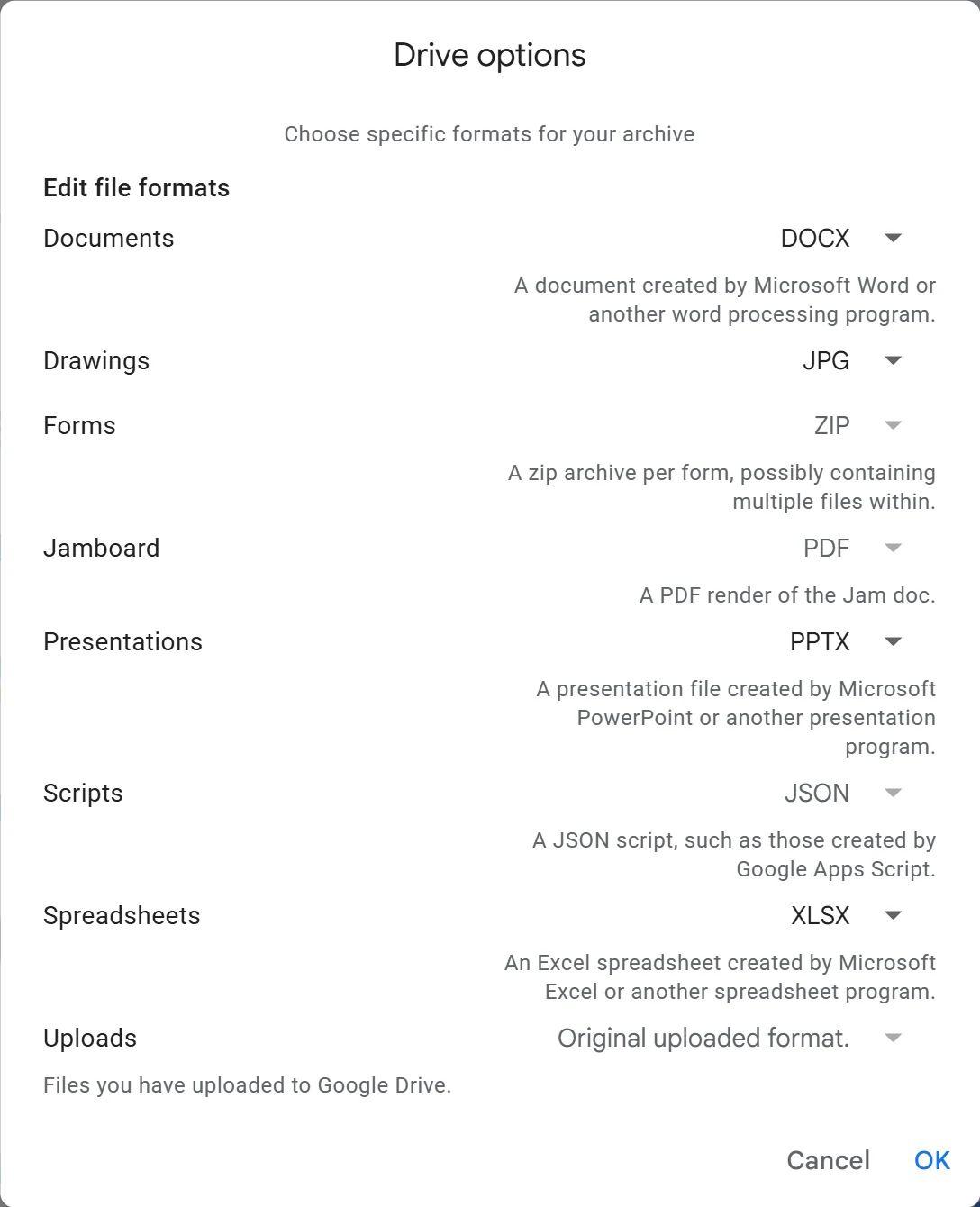
Takeout exports your whole Drive by default. To export one folder only, click All Drive data included, untick Include all files and folders in Drive, tick the folder you want, and click OK.
Or Download a Few Decks by Hand
For a handful of presentations, open each one and choose File → Download. Pick PowerPoint (.pptx), then download a PDF of the same deck for reference.
Open, Check and Present
- In Impress, ONLYOFFICE or Keynote, open the .pptx file directly.
- In CryptPad, create a new presentation and use its Import option.
- In Zoho Show, import the .pptx file.
- Run the font and layout checks from the section above.
- Rehearse on the real screen. Test presenter view with your laptop and the projector or second monitor before the day you present.
Our Google Takeout guide walks through every export screen. For video calls where you share slides, see Google Meet alternatives.
What You Lose
Partial is fine. If your school or employer runs on Google Workspace, keep that account for work and move your own presentations first.