Firefox runs on Gecko, the only major browser engine besides Apple’s that Google doesn’t control. It still runs the full uBlock Origin on desktop and Android, which Chrome stopped doing in March 2025. If you’re still choosing between browsers, our Chrome alternatives page compares Firefox with Brave, LibreWolf and the rest. This page assumes you’ve picked Firefox.
Before You Start
- Decide where your passwords will live. Firefox’s built-in manager is free, syncs with end-to-end encryption, and works only in Firefox. A separate manager such as Bitwarden works in every browser and in your phone’s apps. Both routes are below.
- Save your open tabs. Bookmark them into one folder in Chrome.
- List your extensions. Open
chrome://extensionsand note the ones you use. - Install Firefox from firefox.com.
Export Your Chrome Passwords (Windows and Linux)
Firefox on a Mac imports passwords straight from Chrome. On Windows and Linux it can’t any more, so export them to a file first. Mac users who plan to use Bitwarden need this file too.
- In Chrome, click More (three dots), then Passwords and autofill, then Google Password Manager. You can also type
chrome://password-manager/settingsin the address bar. - Click Settings, then Export passwords, then Download file.
- Enter your computer’s password when asked. Chrome saves a CSV file.

The file is plain text, and anyone who opens it can read every password. It’s also a full list of the sites you log in to, which makes it the starting point for moving accounts off Gmail. Our scan reads it in your browser, ignores the password column and uploads nothing.
Import Everything Into Firefox
- Quit Chrome completely. The import needs Chrome to be closed.
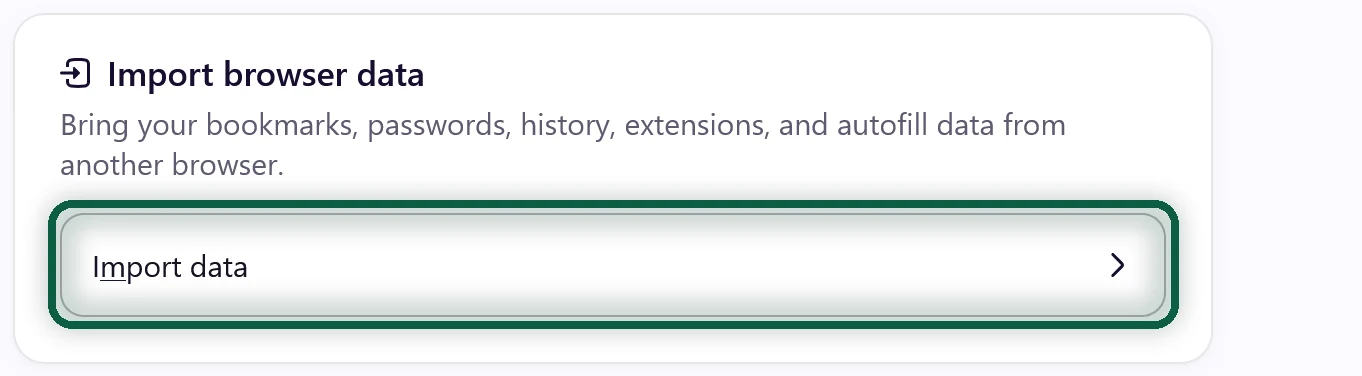
- In Firefox, open the menu, then Settings. Find Import Browser Data and click Import Data. It’s on the General page, or on Account and sync in Firefox’s redesigned settings. On a Mac, File, then Import From Another Browser also works.
- Choose Google Chrome and your Chrome profile. Tick Bookmarks, Browsing history, Extensions and Form autofill data, plus Saved passwords on a Mac. Click Import, then Done.
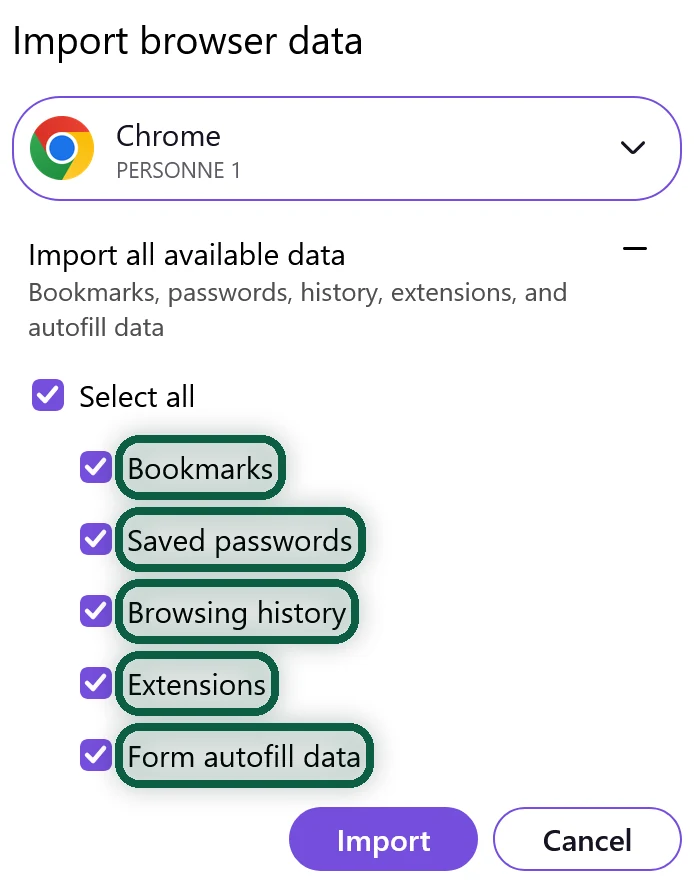
- On Windows or Linux, click Import Data again, choose Passwords from CSV file and pick the file you exported. Skip this if your passwords are going to Bitwarden.
- Open Firefox’s menu and click Finalize the installation of your imported add-ons.
- Delete the CSV file and empty the trash.
The import copies data and leaves Chrome untouched. If your bookmarks seem to be missing, turn on the bookmarks toolbar under More Tools, then Customize Toolbar. On Windows, Firefox can’t import Chrome’s saved payment cards, so add them again by hand.
Or Move Your Passwords to Bitwarden
Bitwarden’s free plan covers unlimited passwords on unlimited devices, and it fills logins in any browser and in your phone’s apps. That matters if you ever switch browsers again, or want your passwords in your phone’s apps.
- Create a Bitwarden account and open its web vault.
- Go to Tools, then Import, choose My vault and the format Chrome (csv), pick the CSV file and click Import. Import only once, because Bitwarden doesn’t remove duplicates.
- Install the Bitwarden extension in Firefox and log in.
- In Firefox’s password settings, turn off the offer to save passwords, so new logins go to Bitwarden.
Our password manager and authenticator guide covers the full move, including setting Bitwarden as your phone’s autofill service. On recent Android versions, Google Password Manager can also hand passwords and passkeys straight to Bitwarden without a file.
If you keep Firefox’s own manager instead, set a Primary Password. Mozilla recommends it for the best security on your computer. Passwords you sync are end-to-end encrypted with AES-256-GCM, so Mozilla can’t read them.
Replace Your Extensions
Firefox installs the matches it finds during the import. For the rest, search addons.mozilla.org.
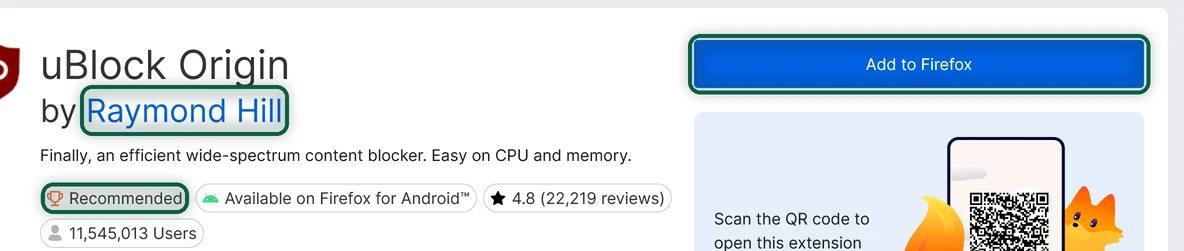
- uBlock Origin. Install the full version by Raymond Hill, which carries Mozilla’s Recommended badge and works on Firefox for Android too. If you used uBlock Origin Lite in Chrome, switch to the full version here.
- Password managers such as Bitwarden, Proton Pass and 1Password all have Firefox extensions.
- Firefox Multi-Account Containers, made by Mozilla, keeps sites in separate color-coded tabs with their own cookies. It’s a good way to keep a Google login away from the rest of your browsing.
Some Chrome-only extensions have no Firefox version. Check the developer’s website before you give up on one.
Change These Settings on Day One
Firefox redesigned its settings pages in 2026, so section names depend on your version. The search box at the top of Settings finds any setting below by name.
Search Engine
Open Search and pick a new Default Search Engine. Our Google Search alternatives page helps you choose. In the Firefox Suggest section of the same page, untick sponsored suggestions.
Tracking Protection
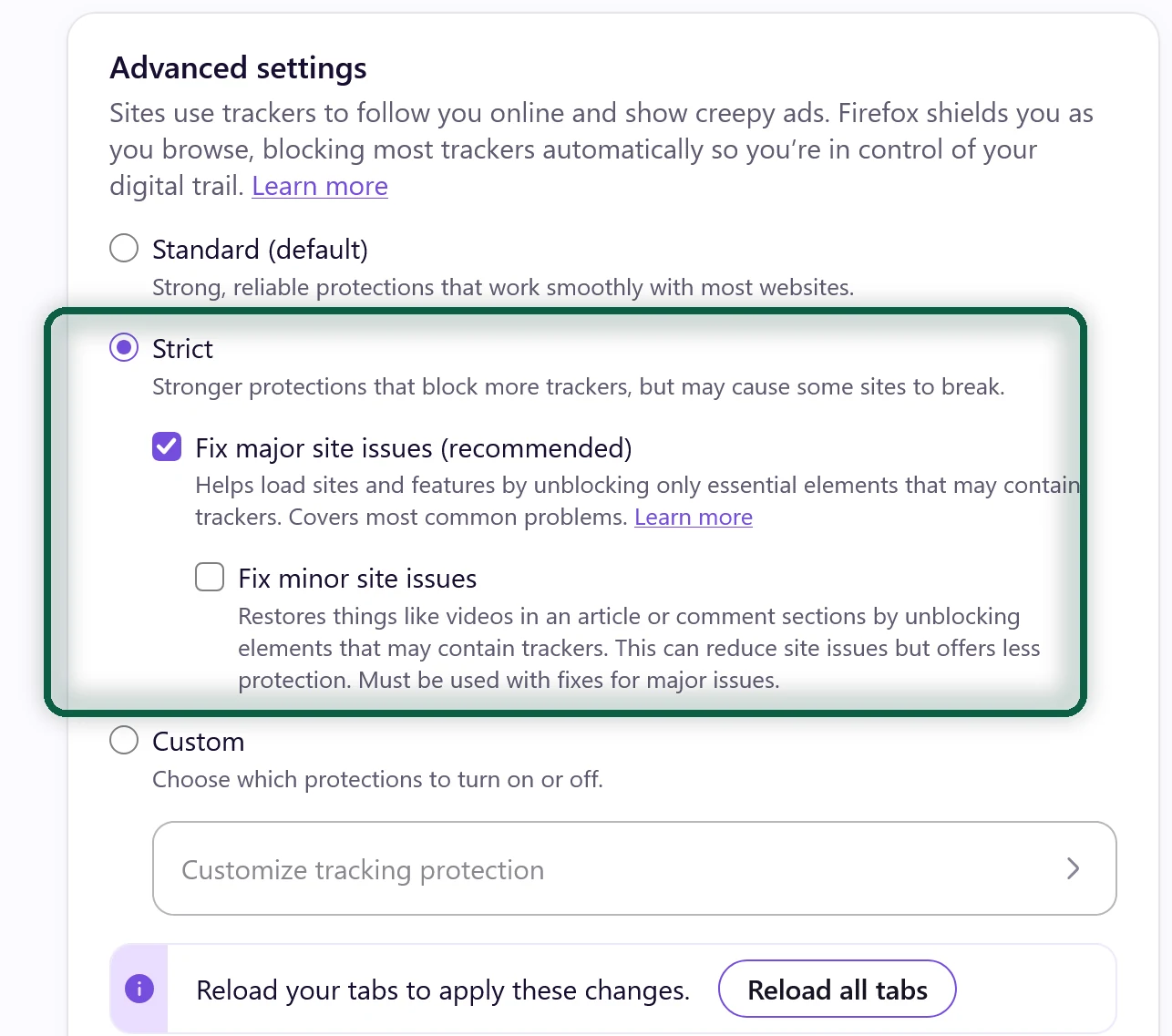
Enhanced Tracking Protection starts on Standard, which already includes Total Cookie Protection. Strict also blocks all cross-site cookies, social media trackers, tracking content in every window, and fingerprinters. Mozilla warns that Strict can break logins, payments, comments and videos on some sites. If a site breaks, click the shield icon in the address bar to turn protection off for that site.
Also tick Tell websites not to sell or share my data, which sends the Global Privacy Control signal to every site.
Data Collection
Find Firefox data collection and use and untick Send technical and interaction data to Mozilla and Send daily usage ping to Mozilla. Turning off technical data also asks Mozilla to delete what it already collected, within 30 days.
Sponsored Content
Under Firefox Home Content, untick Sponsored shortcuts and Sponsored stories.
Safe Browsing
Firefox warns you about dangerous sites and downloads. For some program downloads, it checks with Google’s Safe Browsing service and sends Google the file’s name, origin, size and a hash. You can turn this off by unticking Block dangerous and deceptive content, but you lose the warnings. Most people should leave it on.
Turn off the AI Features
Firefox 148 added a single switch for its generative AI features.
- Open Settings and select AI Controls.
- Switch on Block AI enhancements.
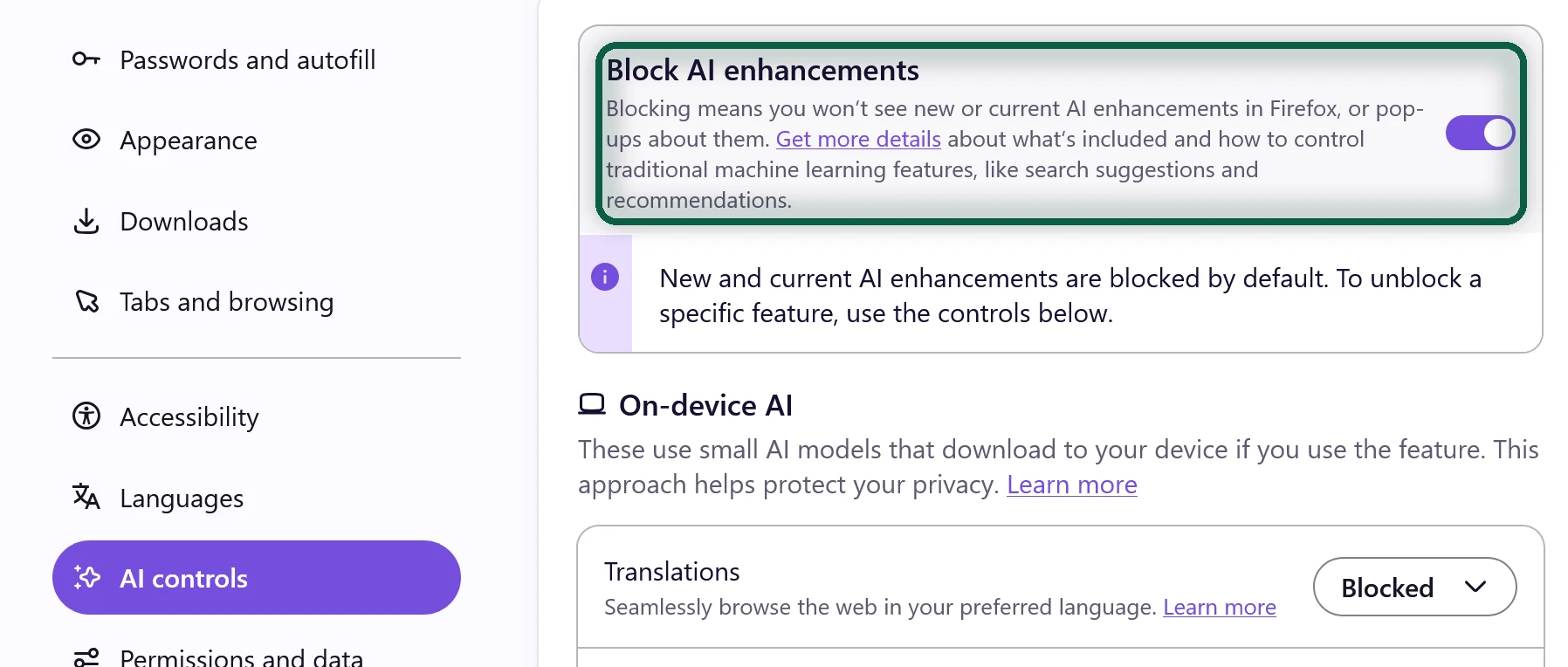
This blocks the AI chatbot in the sidebar, AI-enhanced tab groups, key points in link previews, speech recognition, alt text for PDF images and website translations, and removes the on-device models those features use. Mozilla says the switch also covers AI features added later.
Want to keep one feature, such as translations? Leave the main switch off and set each feature you don’t want to Blocked in its dropdown. These steps are for Firefox on a computer.
Set up Sync and Your Phone
Sync With a Mozilla Account
Click Sign in in the Firefox toolbar and create a Mozilla account, or sign in to one you have. Signing in turns on Sync. To choose what syncs, open Manage synced data in Settings and pick from bookmarks, passwords, open tabs, history, payment methods, add-ons and settings.
Firefox on Android
- Install Firefox on your phone.
- On your computer, open firefox.com/pair, choose I already have Firefox for mobile and continue to show a QR code.
- On the phone, open Firefox’s menu, tap Sign in, then Ready to scan, and scan the code.
- Install uBlock Origin from Firefox’s extensions menu on the phone.
- In Firefox’s Settings, open Data collection and turn off Daily usage ping.
- In Android’s settings, go to Apps, Default apps, Browser app and choose Firefox.
Firefox on iPhone
Firefox on iPhone doesn’t support add-ons, so uBlock Origin isn’t available there. Sign in with your Mozilla account to sync, then set Firefox as your default under Settings, Apps, Default Apps, Browser App.
Close Out Chrome
- Sign out. In Chrome, click your profile picture, then Sign out of Chrome, so it stops syncing to your Google account.
- Delete the synced copy. Go to chrome.google.com/data in Chrome and select Delete data.
- Keep a backup if you like. A Google Takeout export of Chrome saves your bookmarks and history.
- Uninstall Chrome, or disable it on an Android phone where it can’t be removed.
- Check your Sign in with Google logins. Give those accounts a password before you go further with our Sign in with Google guide.