Traffic, reviews and opening hours stay with Google. What you can bring is your own data, meaning the places you starred and the lists you built. This guide moves them into CoMaps, the free, offline, open-source app we recommend in our Google Maps alternatives comparison, and sets it up for your next trip. If you’re still choosing between the apps, our Organic Maps vs Google Maps comparison covers traffic, transit and offline maps.
What Moves and What Doesn’t
Google exports your places in two different shapes, and only one of them has coordinates.
| In Google Maps | What Takeout gives you | How it gets into CoMaps |
|---|---|---|
| Starred places | A GeoJSON file, usually Saved Places.json, with names, addresses and coordinates |
Convert it to KMZ, then import it |
| Want to go, Favorites and your own lists | One CSV file per list, with titles, notes and Google Maps links, but no coordinates | Re-add places by hand, or look them up in Google My Maps |
| Reviews | A GeoJSON file of your reviews | Nothing to import. Keep it as an archive |
| Timeline | Not in Takeout. It’s stored on your phone | No equivalent. Export it from the phone if you want a copy |
CoMaps reads KML, KMZ and GPX files, plus its own KMB format. It doesn’t read GeoJSON or CSV, which is why your starred places need one conversion step.
Install CoMaps and Download Your Maps
Install CoMaps first so it’s ready when Google’s files arrive. On Android, get it from Google Play or F-Droid. On iPhone, get it from the App Store. If you drive with Android Auto, install from Google Play, because CoMaps only works in the car when Google Play installed it.
- Open CoMaps and allow location access.
- Tap the menu button (three lines) at the bottom of the screen, then Download Maps.
- Tap the green + button, find your country or region, and download it. Use Wi-Fi for large regions.
- Add the regions you travel to. A route needs every map between you and your destination, and CoMaps offers to download any that are missing.
A yellow arrow marks a region with a map update, and Update All fetches them together. Since May 2026, map updates no longer wait for an app update.
Export Your Places From Google Takeout
Do this on a computer. Our Google Takeout guide explains every screen.
- Go to takeout.google.com and click Deselect all.
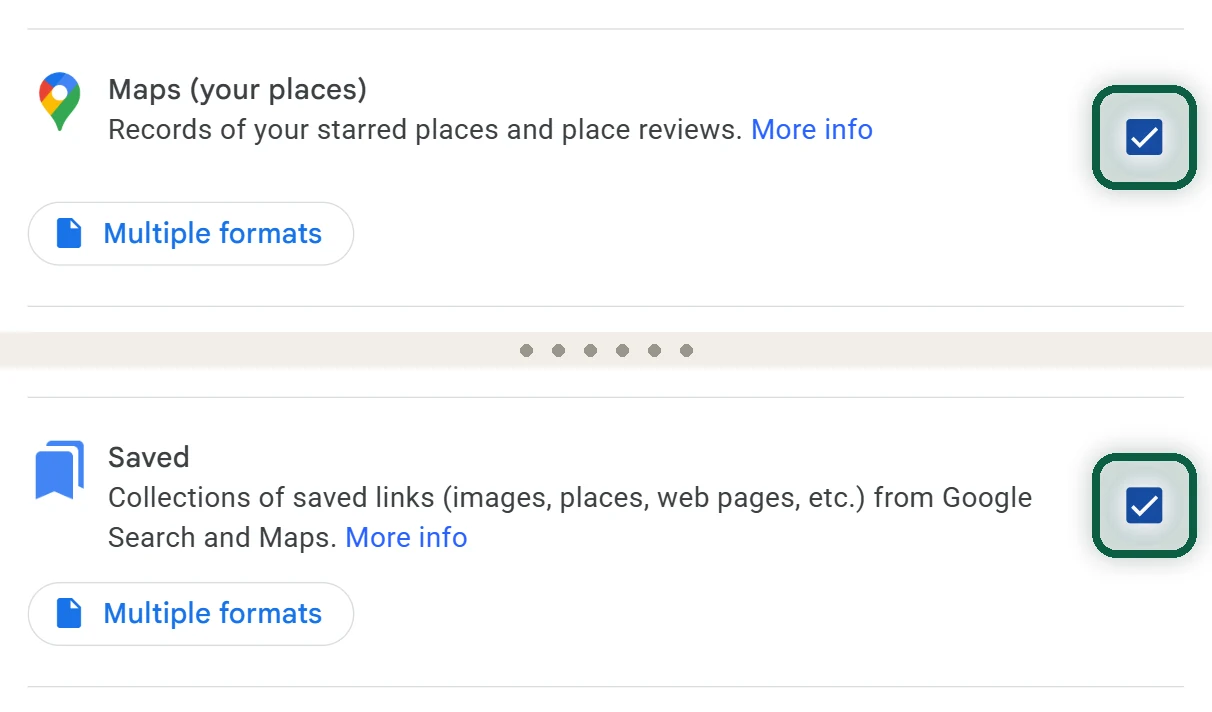
- Tick Maps (your places) and Saved, and leave everything else unticked.
- Click Next step, choose a one-time export as a .zip file, then click Create export.
- Wait for Google’s email. Most exports arrive the same day. Click Download archive before the link expires after about 7 days.
- Unzip the archive. Your starred places are in the Maps (your places) folder, usually as
Saved Places.json. Each list from Saved is a separate CSV file.
Copy these files to your phone, over USB or through a cloud folder you already use.
Convert Your Starred Places With Organic Maps
Organic Maps, the app CoMaps was forked from, improved its import of Google’s Saved Places.json in November 2025. It can also export any list as a KMZ file, which CoMaps reads. That makes it a free, offline converter you can uninstall afterwards.
- Install Organic Maps from the same app store you used for CoMaps.
- Open
Saved Places.jsonin your phone’s file manager and choose Open with Organic Maps (Android) or Import with Organic Maps (iPhone). If Organic Maps isn’t offered, rename the file toSaved Places.geojsonand try again. - Open the Bookmarks and Tracks screen and look at the new list. Google writes 0 for coordinates it doesn’t know, so some places can land in the ocean off West Africa. Delete those and re-add them in CoMaps later.
- Tap the three dots next to the list’s name, then Export KMZ, and save or share the file.
- Open the KMZ file and choose CoMaps. On iPhone, tap Share, then CoMaps.
- CoMaps confirms that your favorites loaded, and the places appear on the map and in a new list.
CoMaps renamed Bookmarks and Tracks to Favorites in January 2026, so older guides may use the old name. Another GeoJSON-to-KML converter works too, as long as the place names survive.
Bring Over Your Other Lists
The CSV files from Saved hold a title, your note and a Google Maps link for each place, but no coordinates. Choose one of two routes.
Re-Add the Places You Actually Use
Most people have 10 to 30 places that matter. In CoMaps, search for each one, tap it, then tap Save. To rebuild your lists, open Favorites (the star button) and create the lists first. Then tap a saved place, tap Edit and pick its list.
If search can’t find a place, narrow it down. Search the city first, then the street or the name.
Let Google My Maps Look Them Up
For long lists, Google My Maps can turn place names into pins and export them. Use it once, before you leave Google.
- Go to mymaps.google.com and create a new map. Click Add layer, then Import under the new layer.
- Upload one CSV file. When My Maps asks which column places the markers, pick the title column. Pick it again for the marker names.
- Check the pins. A lookup by name can land on a different place with the same name, so fix or delete the odd ones.
- Open the map’s Menu, choose Export to KML/KMZ, and download the file.
- Open the file in CoMaps as above, then delete the map in My Maps.
My Maps accepts files of up to 2,000 rows and 40 MB.
On Android, CoMaps can import many files at once. Put your KML, KMZ and GPX files in one folder, open Favorites, tap Import Favorites and pick the folder. CoMaps imports every file it finds there. On iPhone, open the files one at a time and share each one to CoMaps.
Set up CoMaps for Your First Trip
The labels below come from the Android app, and the iPhone menus are similar. Open the menu, then Settings.
Routing and Voice
Open Navigation.
- Routing options let you Avoid tolls, Avoid unpaved roads, Avoid ferries and Avoid freeways. On Android you set them separately for driving, walking and cycling, and the route screen shows which ones are on.
- Voice Instructions, Announce Street Names and Voice Language control spoken directions. Tap Test Voice Directions to check the volume. CoMaps uses your phone’s text-to-speech engine, so a degoogled phone may need one installed from F-Droid or another store.
- For speed cameras, choose Warn if speeding, Always warn or Never warn. CoMaps switches these warnings off in countries where they’re prohibited.
- Automatic rerouting builds a new route when you leave the planned one. Turn it off to pick your own detours.
Privacy
- Google Fused Location Service combines GPS with Wi-Fi and cell networks for a better fix, and CoMaps notes that it may connect to Google’s servers. Turn it off to rely on your phone’s GPS alone.
- Mobile Internet decides when CoMaps goes online. It only needs a connection for map update notices, uploading map edits and links to review sites. Never Use keeps it fully offline.
Backups
On Android, open Data management, then Backup Favorites. Pick a Backup location, set Automatic backup to Daily or Weekly, and choose the Number of backups to keep. On iPhone, the iCloud Synchronization (Beta) setting is experimental, so export your favorites before you turn it on.
Before you reset your phone or uninstall the app, tap Export all Favorites on the Favorites screen and keep the file somewhere safe.
In the Car
On iPhone, CoMaps works with CarPlay. On Android, it works with Android Auto when Google Play installed it. Whether Android Auto runs at all on a degoogled phone depends on the system, which our Google Maps alternatives page covers.
Keep Google Maps for Lookups, Signed Out
Partial is fine. You can still check opening hours, reviews and Street View in a private window, or in a browser you never sign in to Google with. Nothing you look up there joins your Google account.
Once your places are safe in CoMaps, you can delete your lists in Google Maps and turn off Google’s location tracking. Maps is rarely the only Google service you rely on. Our scan finds the others from files you download yourself, without uploading anything.
What You Lose
Troubleshooting
CoMaps Says the File Failed to Load
The file is probably GeoJSON or CSV, which CoMaps can’t read. Convert it to KMZ with Organic Maps, or to KML with My Maps, then try again.
Some Places Are in the Wrong Spot
Pins off West Africa had no coordinates in Google’s file. Pins in the wrong town usually come from a My Maps lookup that matched another place with the same name. Save the right place in CoMaps and delete the wrong pin.