Looking for a Google Family Link alternative usually starts with your own degoogling. You’ve moved your email and photos, and your child’s phone is the last thing tied to Google. It’s also the most delicate one, because your child’s safety and their trust in you are part of it.
So go slowly. Every family draws the line differently, and there’s no wrong answer in keeping Family Link while you move everything else. This page lays out what can replace it on each kind of device, what each option sees about your child, and what really happens to a supervised Google account when you leave.
Start With What You Actually Use
Family Link does several jobs. Most families rely on two or three of them, and each has a different replacement.
- For screen time limits and bedtime, use Screen Time on iPhone, Microsoft Family Safety on Windows and Xbox, and Qustodio on Android.
- For approving apps and purchases, turn on purchase approval in Screen Time on iPhone. On Android, Qustodio can block apps, and a GrapheneOS phone can block new installs entirely.
- For filtering websites and search results, add a filtering DNS service on any device, plus Screen Time’s website limits on iPhone.
- For seeing where your child is, use Family Sharing’s location sharing on iPhone, or Qustodio or Bark on Android.
Quick Comparison
| Alternative | Best for | Price (Oct 2026) | Privacy | Based in | Open source |
|---|---|---|---|---|---|
| Apple Screen Time | Children with an iPhone or iPad | Free, built in | No extra company involved | USA | No |
| Microsoft Family Safety | Windows PCs and Xbox | Free | Needs a Microsoft account | USA | No |
| Qustodio | One dashboard for Android and iPhone | Free for 1 device; Basic about $59.95/year; Complete about $104.95/year | A third company sees your child’s activity | Offices in Spain and the USA | No |
| Bark | Alerts about worrying messages | About $14/month or $99/year | Scans texts, email, chats and photos | USA | No |
| NextDNS, DNS4EU, Pi-hole | Web filtering on every device or your home network | Free; NextDNS Pro about $1.99/month | Sees the sites devices look up | USA; EU; your own hardware | Pi-hole, yes |
| GrapheneOS profiles | A locked-down Android phone with no Google account | Free (needs a Pixel) | No account, no tracking service | Non-profit project | Yes |
The Alternatives, One by One
Apple Screen Time
If your child has an iPhone or iPad, this is the replacement. You create a Child Account in Family Sharing (up to six people share one family), then set the rules from your own device. Apple’s iOS 27 guide calls the main controls Screen Time Schedule, Time Allowances, Allowed Contacts, Require Purchase Approval and Ask to Browse, and Limit Adult Websites is on by default for children under 18. Older iOS versions use names such as Downtime and App Limits. Family Sharing also handles location sharing.
- Pick it because it controls the whole device, it’s free, and no extra company gets your child’s data.
- A possible deal-breaker is that Apple’s guide has you manage it from your own iPhone or iPad, so it fits best when the parent uses Apple devices too. All devices in the family should run iOS 27 or later for the newest controls.
Microsoft Family Safety
It’s free, and each family member needs a Microsoft account. It sets device time limits on Windows and Xbox, app and game limits on Windows, Xbox and Android, and web and search filters in Microsoft Edge, which blocks other browsers to make the filter stick.
- Pick it for a family PC or an Xbox. It’s the natural partner to Screen Time in a mixed household.
- Deal-breakers include the lack of iPhone controls (the iPhone app only manages other devices), and the end of its location and driving features, which Microsoft has removed.
Qustodio
Qustodio is a paid parental-control service with apps for Android, iPhone and computers, and offices in Barcelona and the US. It’s the closest thing to Family Link on an Android phone without Google’s supervision.
- Pick it for one dashboard across Android and iPhone, with web filtering, app blocking, time limits and location.
- A possible deal-breaker is that a third company now receives reports about your child’s activity. Check its privacy policy and decide whether you’re comfortable with that.
- Prices (Oct 2026) start with a free plan for 1 device. Basic is about $59.95/year for up to 5 devices, and Complete is about $104.95/year for all your family’s devices, with call and SMS monitoring and YouTube monitoring. Prices vary by country and promotion, so check at checkout.
Bark
Bark takes a different approach. It monitors your child’s texts, email, social media and web activity, and alerts you when its automated scanning flags something you may need to see. It also offers screen time, blocking and location.
- Pick it if you have a specific safety worry with an older child, and you’ve talked about it together.
- The deal-breaker is privacy, for your child. Bark’s privacy policy says automated systems, including AI, scan messages, documents and photos, and that it generally keeps identifiable data for 30 days. That’s more intrusive than anything Family Link does.
- The Bark app costs about $14/month or $99/year (Oct 2026) for all your children and devices. It’s available in the US, South Africa and Australia.
A Filtering DNS Service
Every device looks up website names through a DNS service. A filtering service quietly refuses to look up adult sites or anything else you block, in every app and browser.
- NextDNS has a parental control section that blocks porn and violence, specific sites and apps, enforces SafeSearch and YouTube Restricted Mode, and has Recreation Time to allow some apps only at set hours. The free plan includes all features up to 300,000 queries a month. Pro is about $1.99/month or $19.90/year (Oct 2026).
- DNS4EU, run in the EU, has a free child-protection filter that blocks explicit content, violence and drugs. On Android, enter child.joindns4.eu under Private DNS in the network settings.
- Pi-hole is free software that filters your whole home network from a Raspberry Pi, an old PC or a NAS. Its groups let you set stricter rules for the kids’ tablets.
The limit is that DNS filtering only blocks sites, and a determined teenager can often get around it, for example by changing the device’s DNS setting. Pi-hole only covers your home Wi-Fi, so a phone on mobile data skips it. Treat filtering as a safety net that works alongside one of the tools above. Our Google DNS alternatives page explains how to set DNS on each device.
GrapheneOS With a Child Profile
GrapheneOS is a privacy-focused Android for Pixel phones. It has no parental-control app. Its user profiles still give you a simple, Google-free setup. You keep the Owner profile with your own PIN, give your child a secondary user, install only the apps you choose into it, and switch off app installation for that user.
- Pick it if you want a phone with no Google account at all, and a fixed set of apps your child can’t add to.
- The deal-breakers are real. There are no time limits, no location sharing and no web filter, so pair it with a DNS filter. Community members have reported ways around the install block, such as a Private Space, so check the current state on the GrapheneOS forum before you rely on it. You also need a supported Pixel. See our GrapheneOS guide.
What Happens to Your Child’s Google Account
This part decides how fast you can leave, so read it before you change anything.
- Under 13 (or the age that applies in your country), supervision is part of the account. Google’s help pages don’t offer a switch to simply turn it off. They describe keeping the account, transferring supervision to another parent, or deleting the account.
- Deleting the account deletes everything. Your child loses their email, files, calendars, photos and Play purchases, and family subscriptions stop. Google gives you a limited time to restore it, without saying how long. If you also delete your family group, the account can’t be restored.
- Remove the account from your child’s devices first. Google warns that a device can lock and need a factory reset if you delete the account while it’s still signed in.
- At 13, your child can update their account but can’t leave supervision alone. Teens need a parent’s approval to stop supervision until 18. Once your child is over 13, you can no longer delete the account for them, though they can delete it themselves.
- Your family group comes last. Before the family manager can delete it, every child under 13 must be moved to another parent’s supervision or deleted, and supervision of older teens must be stopped. After deleting a family group, you can create or join another only once in the next 12 months.
- Your own account stays alive while you manage a child. Google treats an account that manages a child through Family Link as active, so it won’t be deleted for inactivity. If you plan to delete your own account, settle your child’s first. Our Google account deletion guide covers the rest.
If your child’s Google account comes from their school, the school manages it. Leaving Google there is the school’s decision. Our Google Classroom alternatives page covers what parents can ask for.
How to Switch From Family Link
Put the Replacement in Place First
- Talk with your child about what’s changing and why. With a teen, agree on the new rules together. They’ll accept them more easily, and they’re less likely to look for ways around them.
- Set up the new controls and leave Family Link running. On an iPhone, create the Child Account in Family Sharing and turn on Screen Time. On Android, install Qustodio or set a filtering DNS. Run both for a week.
Save Your Child’s Data
- Google’s privacy notice for children says you can export your child’s information by signing in to their Google account. On a computer, sign in as your child, open takeout.google.com and click Deselect all.
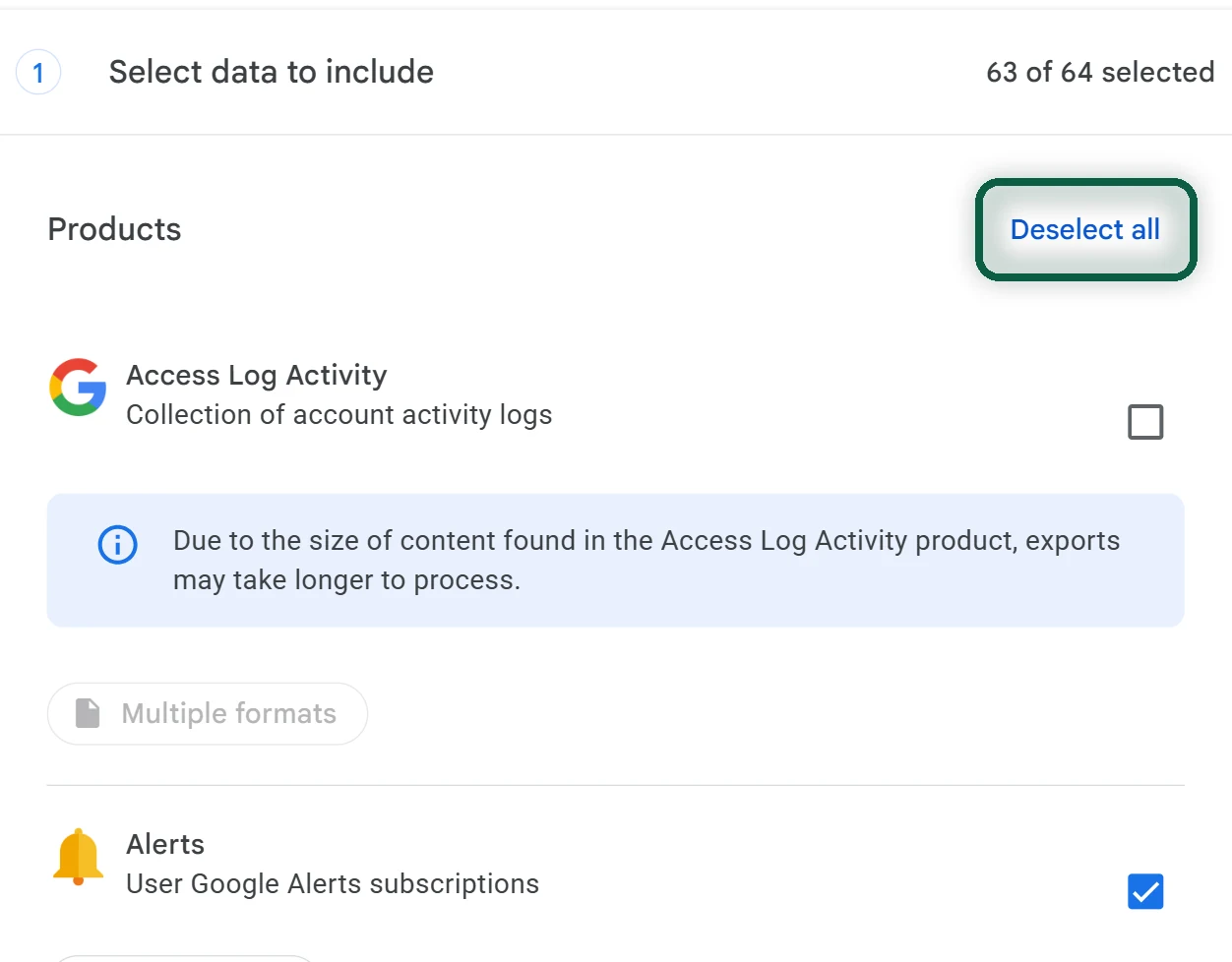
- Tick what your child wants to keep, such as Google Photos, Drive, Mail and YouTube, then click Next step and Create export. Download every part within about 7 days.
- Check whether games, school apps or other sites use Sign in with Google with your child’s account. Give each one a new email and password first. Our Sign in with Google guide shows how.
Remove the Account From the Device
- In Family Link on your phone, select your child, then go to Controls → Signed-in devices, choose the device and tap Reset device & delete data. This erases the phone, so do it after the backup, then set the phone up again and reinstall your new controls.
- If that option isn’t there, open Settings → Passwords, passkeys & accounts on your child’s Android phone (Users & accounts on Android 12 and earlier), select their account and tap Remove account. Supervision then stops on that phone, though the account itself stays supervised.
Decide What Happens to the Account
- For a child under 13, keep the account if they still need it (for school, for example), or delete it in Family Link under Controls → Account settings → Delete account. On a computer, use familylink.google.com.
- For a teen, stop supervision from Family Link or from their device. They keep the account and can delete it themselves later.
- For the family group, move or delete each child’s account first, then delete the group at g.co/YourFamily. Family plans such as Google One and YouTube Music end for everyone in it.